node-red-contrib-huemagic 5.1.1
Philips Hue nodes to control bridges, lights, groups, scenes, rules, automations, buttons, switches, dials, doorbells, speakers, motion sensors, cameras, contact sensors, temperature sensors, light level sensors and the Hue Play HDMI Sync Box using Node-R
HueMagic - Philips Hue nodes for Node-RED




HueMagic provides several input and output nodes for Node-RED and is the most in-depth and easy to use solution to control Philips Hue bridges, lights, groups, scenes, rules, automations, buttons/switches, dials, doorbells, speakers, motion sensors, cameras, contact sensors, temperature sensors, light level sensors and the Hue Play HDMI Sync Box.
Features
- Simple and comprehensive control of the Hue Bridge and connected devices
- Automatic discovery of Philips Hue bridges as well as devices, scenes & groups…
- Output and input of multiple color code definitions (HEX, RGB & human readable color names)
- Automatic color temperature & brightness setting based on the current time
- Event-based status messages for all devices connected to the Hue Bridge
- Pairing of new devices without app enforcement (TouchLink)
- Searches for new devices the way the Hue app does, optionally by serial number
- Automatic firmware updates to the Hue Bridge and connected devices
- Reports pending firmware updates, the location, who is at home and the WiFi of a Hue Bridge Pro
- Lists and streams the entertainment areas of the bridge
- Activating / deactivating of sensors, rules & automations on the Hue Bridge
- Extended alarm and colorloop effects on light bulbs and whole groups
- A large selection of animations and the option to create custom animations
- Additive state settings on all nodes with multiple commands
- Change states even if the corresponding devices are offline or turned off
- Real-time status messages for each node & in the Node-RED UI (SSE)
- Nodes can stay passive and only answer the commands you send them
- Uses the latest CLIP/v2 API version of the Philips Hue Bridge
- Supports the Hue Bridge Pro as well as the square-shaped Hue Bridge
- Supports Hue Secure cameras, video doorbells, contact sensors and speakers
- Controls the Hue Play HDMI Sync Box over its own local API
- Turns your lights into motion sensors with MotionAware (Hue Bridge Pro)
- Plays the built-in light effects and the sunrise / sunset simulation
- Sets the behaviour of a light after a power cut
- Switches a Hue wall switch module between rocker and pushbutton mode
- Recalls scenes with their own transition time and brightness
- Calibrates temperature sensors and the darkness threshold of light level sensors
- Available in ten languages, including the complete node documentation
- Lean on dependencies: nine packages, no HTTP client and no known vulnerabilities
Installation
HueMagic was written for Node.js 18+ and Node-RED v3+. It supports the square-shaped Hue Bridge with the firmware 1948086000+ or higher as well as the Hue Bridge Pro. You can install HueMagic directly via the Node-RED Palette Manager or manually using npm / yarn.
npm install node-red-contrib-huemagic
Please make sure that you deactivate other Hue-related nodes in Node-RED and meet the minimum requirements of Node.js and the Philips Hue Bridge firmware!
Available Nodes
- Hue Bridge
- Hue Magic
- Hue Light
- Hue Group
- Hue Scenes
- Hue Buttons
- Hue Motion
- Hue Contact
- Hue Temperature
- Hue Brightness
- Hue Speaker
- Hue Automation
- Hue Rule
- Hue Sync Box
Examples
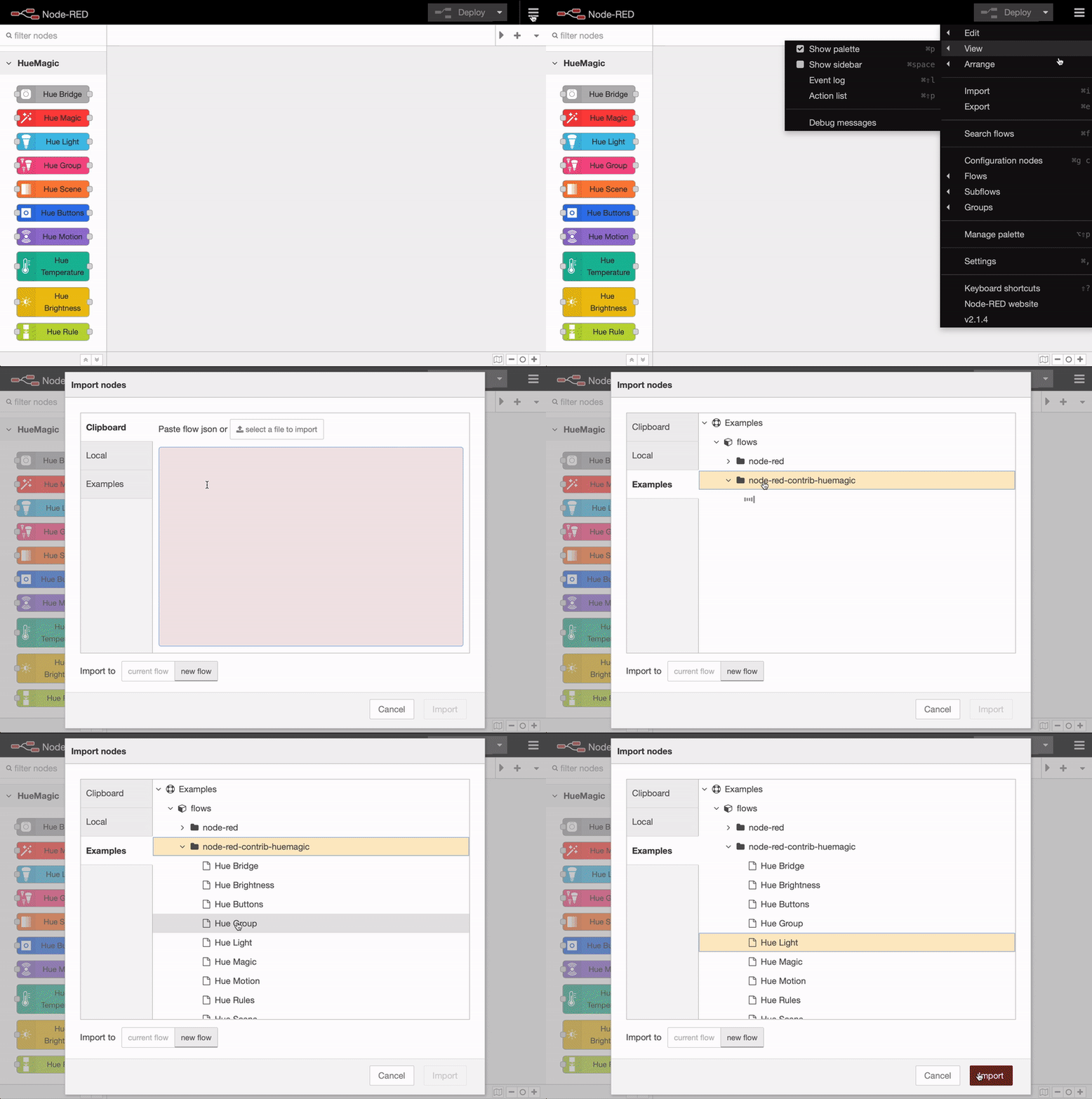
HueMagic provides a large selection of full featured sample flows for all nodes. You can find these examples in the examples folder on GitHub or directly in Node-RED. To import a full featured example into your Node-RED interface, click on the Node-RED menu icon, then select "Import" and navigate to "Examples" in the sidebar of the popup. Then select the HueMagic folder, the language you are most comfortable with and your desired node to import a sample flow. The examples are translated into all ten languages, with one folder per language.
Hue Bridge
The "Hue Bridge" node is a universal node that can output all settings of the bridge and status messages from other nodes.

Node-RED Setup Instructions
First select the desired Hue Bridge. You can optionally deactivate all automatic status messages for this node by clicking the setting “Skip global device updates / messages on this node”. The node will then no longer issue device updates.
Alternatively, you can also choose whether the initialization messages of all nodes should not be suppressed when Node-RED is started. If you activate this setting, you will receive a status message from all resources connected to the bridge after each deployment.
Get settings / status
Outputs the current status / settings of the bridge as soon as the following message has been sent to the node. Alternatively, you can also press the button in the Node-RED interface without having to pass a message to the node beforehand.
| Property | Description |
|---|---|
| payload (boolean) | Returns the current status of the bridge |
Trigger TouchLink scan
You can couple new or old devices to the bridge using a "TouchLink scan" (e.g. after a reset). To do this, transfer the object msg.payload with the following content:
| Property | Description |
|---|---|
| touchLink (boolean) | Couples old or new devices with the bridge |
Search for new devices
The bridge can look for devices that have not been paired yet — the same search the Hue app performs. To do this, transfer the object msg.payload with the following content:
| Property | Description |
|---|---|
| searchDevices (boolean / array [string, ...] / object) | Starts the search for new devices. Pass an array of serial numbers (or an object with searchCodes) to look for exactly these devices |
Start / stop an entertainment area
The bridge can hand an entertainment area over to a streaming application (e.g. the Hue Sync app) or take it back. To do this, transfer the object msg.payload with the following content:
| Property | Description |
|---|---|
| entertainment (object / string) | Expects action with start or stop and optionally area with the name or the ID of the entertainment area. With only one area on the bridge, area can be omitted |
Get all devices and resources
With the "fetch" command you can output a list of specific devices that are currently connected to the bridge. To do this, transfer the object msg.payload with the following content:
| Property | Description |
|---|---|
| fetch (string / array [string, ...]) | Can accept light, group, button, motion, contact, temperature, light_level or rule as value(s) |
Change Hue Bridge settings
You can use the following command to change specific settings on the bridge. Please note that changing the network settings requires reconfiguring the bridge on HueMagic. Transfer the object msg.payload.settings with the following setting options to the node:
| Property | Description |
|---|---|
| name (string) | Changes the name of the bridge and must contain at least 4 to a maximum of 16 characters |
| zigbeeChannel (int) | Changes the current ZigBee channel (either 11, 15, 20, 25 or 0) |
| ipAddress (string) | Changes the IP address in the network settings |
| dhcpEnabled (boolean) | true, activates DHCP in the network settings, false, deactivates the setting |
| netmask (string) | Changes the network mask in the network settings |
| gateway (string) | Specifies the gateway in the network settings |
| proxyAddress (string) | Sets a proxy address in the network settings |
| proxyPort (string / int) | Specifies the port of the proxy in the network settings |
| timeZone (string) | Changes the currently set time zone on the bridge |
Status messages from the node
The status reports of the "Hue Bridge" node are dynamic. Although they follow a certain pattern, their output can vary depending on what action has just been carried out on the node.
Status object under msg.payload
| Property | Description |
|---|---|
| id (string) | Unique ID of the Hue Bridge |
| name (string) | Currently set name |
| factoryNew (boolean) | Indicator whether the bridge is brand new |
| replacesBridgeId (string / boolean) | Outputs the old bridge ID (if a migration was carried out) or outputs false |
| dataStoreVersion (string) | Version of the data store |
| starterKitId (string / boolean) | Name of the starter kit created in the factory or false |
| softwareVersion (string) | Software version of the bridge |
| apiVersion (string) | API version of the bridge |
| zigbeeChannel (int) | Currently used ZigBee channel |
| macAddress (string) | MAC address of the bridge |
| ipAddress (string) | IP address of the bridge |
| dhcpEnabled (boolean) | Indicates whether DHCP is enabled |
| netmask (string) | Netmask of the bridge |
| gateway (string) | Gateway of the bridge |
| proxyAddress (string / boolean) | Currently used proxy address or false |
| proxyPort (string) | Currently used proxy port |
| utcTime (string) | UTC time on the bridge |
| timeZone (string) | Currently set time zone on the bridge |
| localTime (string) | Local time zone |
| portalServicesEnabled (boolean) | Indicates whether portal services are enabled |
| portalConnected (boolean) | Indicates whether the bridge is connected to the portal |
| linkButtonEnabled (boolean) | Indicates whether the link button is enabled |
| touchlinkEnabled (boolean) | Indicates whether TouchLink is enabled |
| autoUpdatesEnabled (boolean) | Indicates whether the HueMagic will automatically check for updates |
| users (array [object, ...]) | List of all users on the bridge (array with objects) |
| updated (string) | Time of the last update of the resource by HueMagic (ISO 8601) |
| model (object) | Contains the model information of the bridge under id, manufacturer and name |
| softwareUpdates (object) | Firmware state of the devices behind the bridge under pending (number of devices waiting for an update) and devices (list of these devices) |
| location (object) | Location of the bridge under configured, sunriseTime, sunsetTime and dayType, as far as the bridge knows it |
| presence (object) | Presence of the geofence clients under atHome (is anybody at home?) and clients (list of the clients with id, name and atHome) |
| wifi (object / boolean) | WiFi connection of the Hue Bridge Pro under status, macAddress, signalStrength and signalValue, or false on a bridge without WiFi |
| deviceSearch (object / boolean) | State of the device search under status and searching, or false if the bridge does not offer it |
| entertainmentAreas (array [object, ...]) | All entertainment areas of the bridge with id, name, type, status, streaming and the number of lights |
| serviceGroups (array [object, ...]) | Service groups of a Hue Bridge Pro with id, name, archetype and the services they bundle |
Fetch results under msg.results (optional)
If the "fetch" command has been used on the node, the bridge outputs the corresponding results under the msg.results object. The object contains the queried resource groups, which in turn contain all the corresponding resources in the form of an array.
Global status messages under msg.updated (optional)
Unless deactivated, the node outputs an updated status message for each resource on the bridge. The status message under msg.updated follows the pattern of the respective resource and varies depending on the type of device that was last updated.
Last command under msg.command (optional)
If the status of the node has changed via a certain command, the entire command that was executed is also output. Otherwise this object will not be output by the node.
Hue Magic
The "Hue Magic" node can apply complex and custom animations to lights and groups.

Node-RED Setup Instructions
First give the node a name in order to clearly classify your animation in the Node-RED interface. You then have the choice between the options "Loop" and "Restore". Select the loop option if you want your animation to run endlessly on a light or group until you manually stop it. If you want to restore the previous state of the target resource (light / group) after the animation has ended, check the "Restore" option. Otherwise the last frame of the animation remains on the respective resource.
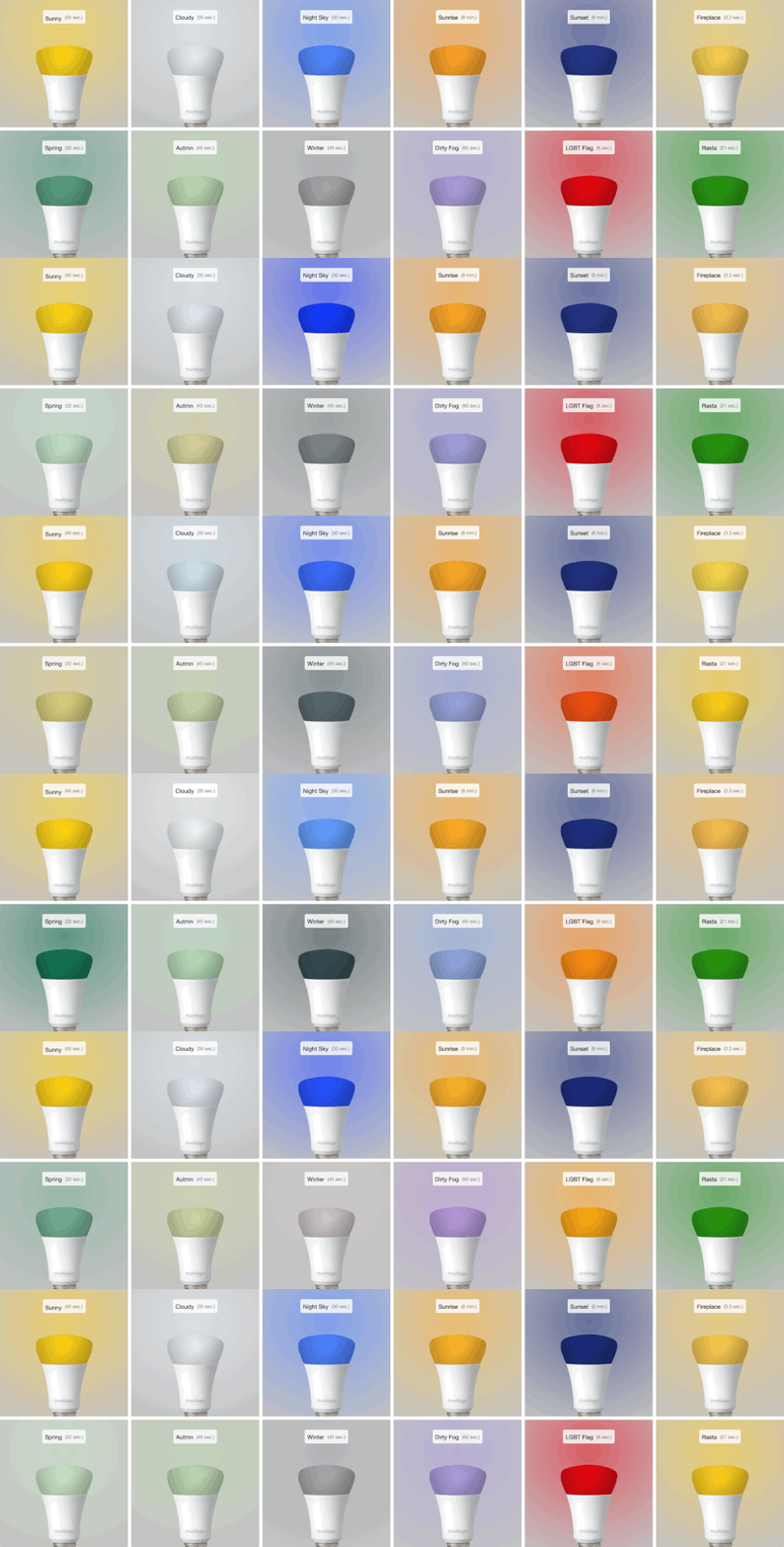
Below you can choose from pre-made animations from HueMagic. Click on your desired animation to set it.
Included animations
Choose one of the included animations to apply to a Hue Light or Hue Group node.
Start / stop animation
To play or stop an animation, pass an object with the following content to the node:
| Property | Description |
|---|---|
| payload (boolean) | true, starts the animation, false, stops the animation |
Custom animations
If you pass your own animation to the node, the preselected, pre-defined animation (if set) will be temporarily replaced by yours. Own HueMagic animations are a sequence of commands that have been combined in an array. Each array element forms a step - whereby a step can also consist of several frames (transition effects).
Create an array with the respective animation steps in the form of an object and transfer it to the HueMagic node under msg.payload.steps.
| Property | Description |
|---|---|
| delay (int) | Number of milliseconds to wait until this step is carried out |
| animation (object) | The object contains the action(s) to be carried out in this step. Identical parameters as for the "Hue Light" & "Hue Group" nodes |
If you have created your own animation that you would like to share with others, add it at /huemagic/animations/XXX-youranimationname.json and create a pull request. Take a look at this directory for structure help.
Example of a custom animation
This example shows what a simple animation could look like. In the first step, the delay of 500 milliseconds is waited for. The color of the light is then slowly changed to red over a period of one second. As soon as the light has completely changed to red, the second step is carried out, which also has a delay of 500 milliseconds. Finally the color changes to blue.
If you have set the animation to loop, this process is repeated indefinitely until you manually stop the animation or redeploy the node.
Pass the following object in msg.payload to play the example animation.
{
    "animate": true,
    "steps": [
        {
            "delay": 500,
            "animation": {
                "hex": "#FF0000",
                "transitionTime": 1
            }
        },
        {
            "delay": 500,
            "animation": {
                "hex": "#0000FF",
                "transitionTime": 1
            }
        }
    ]
}
Special commands
Sometimes it makes sense to play an animation in a disorderly manner - e.g. if fire should be imitated more realistically. To play the individual steps randomly, you can pass the following command to msg.payload.specials:
| Property | Description |
|---|---|
| randomOrder (boolean / any) | true, activates the random playback of the individual animation steps |
Tips and hints
This node does not output any status messages. Please connect the output of the node with a group instead of individual lights if you want to animate several lights at the same time with the same animation. The previews of the pre-made animations are simulations and may differ slightly (timing, colors) from the actual animation on a resource.
Hue Light
The "Hue Light" node can control lights connected to the bridge and receive their status messages.

Node-RED Setup Instructions
Select the pre-configured Hue Bridge and hit the search button to find all the available lights. If you already know the ID of a light, you can also enter it here manually. You can either assign a new name for the light internally or choose the predefined name. Optionally, you can also deactivate all automatic status messages for this node by clicking the setting "Skip events from node". The node will then no longer issue device updates. Alternatively, you can also choose whether the node's initialization message should not be suppressed when Node-RED is started. If you activate this setting, you will receive a status message for the currently selected light after each deployment. If you would rather have the node stay silent until you send it something, activate "Only report after a command". It then ignores changes from the app or a switch and only answers your own commands.
If you activate the setting "Activate color naming", the node will try to describe the currently set light color for each status message. You will then receive an additional parameter with the English description of the currently set color in the output.
If you do not select a light and use the node configuration in this way, the node works in the so-called "universal mode". In this mode, the node receives and outputs all status messages of the same type. You can also apply settings in universal mode to a specific light by transferring the corresponding light ID as a string in msg.topic together with your settings.
Get status
Outputs the current status of the light as soon as a msg.payload object with the following content has been passed to the node. Alternatively, you can also press the button in the Node-RED interface without having to pass a message to the node beforehand.
| Property | Description |
|---|---|
| status (boolean) | Returns the current status of the light |
Turn light on / off (simple)
To quickly switch a light on or off in simple mode, pass an object with the following content to the node:
| Property | Description |
|---|---|
| payload (boolean) | true switches the light on, false switches it off |
Light commands (extended)
In addition to simply switching it on and off, there are also many other options available for controlling the light. All nodes in HueMagic can be controlled with additive commands. This means that you can first pass one setting and then another setting in a later command without discarding the previous setting. Transfer the following parameters to a msg.payload object to make more extensive settings on the light:
| Property | Description |
|---|---|
| on (boolean) | true switches the light on, false switches it off |
| toggle (boolean / any) | Toggles between switching on and off, depending on the previous status of the light |
| brightness (int / string) | Percentage value of the light brightness (0-100) or a string with the value auto to automatically set the brightness based on the current time |
| brightnessLevel (int) | Numerical value of the light brightness (0-254) |
| incrementBrightness (int / boolean) | Specifies by how many percent the light should be made brighter or true to make the light brighter in 10% steps |
| decrementBrightness (int / boolean) | Specifies the percentage by which the light should be made darker or true to make the light darker in 10% steps |
| color (string) | random to set a random color or an English color name (e.g. red) |
| hex (string) | Color value in hexadecimal in the form of a string |
| rgb (array [0,0,0]) | Color value in RGB format in the form of an array |
| xyColor (object {x [float], y [float]}) | Color value in the XY color format in the form of an object |
| gradient (object {hex […]}) | An object with a supported color object (e.g. hex, rgb, ...) and several colors to set a gradient to supported lights. An optional mode spreads the colors as interpolated_palette, interpolated_palette_mirrored, random_pixelated or segmented_palette |
| mixColor (object) | A color to be mixed with the current light color. Can accept color, hex, rgb or xyColor objects and optionally amount (int) to indicate the mixing ratio in percent |
| image (string) | Path of an image (local or on the web, PNG, JPEG, GIF or SVG) to set the current color of the light to the average color of the image |
| saturation (int) | Percentage of the saturation of the current color (beta) |
| colorTemp (int / string) | Value between 153 and 500 to set the color temperature of the light or the values cold, normal, warm, hot and auto - where auto is the color temperature based on the current time |
| incrementColorTemp (int / boolean) | Value by how much the color temperature should be warmer or true to make the color temperature warmer in steps of 50 |
| decrementColorTemp (int / boolean) | Value by how much the color temperature should be colder or true to make the color temperature colder in steps of 50 |
| transitionTime (float) | Transition time of the current setting in seconds. If 0 is entered, the light changes to the desired setting immediately. If 3 is entered, the light changes to the desired setting with a slight transition in the next 3 seconds |
| effect (string / boolean) | Plays one of the built-in effects of the light, e.g. candle, fire, sparkle or prism. false stops it again. Which effects a light knows is listed under msg.info.model.effects |
| effectSpeed (float) | Speed of the effect between 0 and 1 (only on lights that support the newer effects_v2) |
| timedEffect (string / boolean) | Plays a sunrise or sunset simulation, false stops it again. Which of them a light knows is listed under msg.info.model.timedEffects |
| duration (float) | Duration of the timed effect in seconds (maximum 6 hours) |
| powerUp (string / object) | Behaviour of the light after a power cut. Either one of safety, powerfail, last_on_state or custom as a string, or an object with preset: "custom" and on, brightness, colorTemp or xyColor |
| colorloop (float) | Plays a "colorloop" animation for the selected duration in seconds and then switches back to the original state of the light |
| alert (float) | Plays an "alert" animation for the selected duration in seconds and then switches back to the original state of the light |
Status messages from the node
As soon as a change in the light settings has been detected (regardless of whether via Node-RED or externally), the following status message is returned by the node:
Status object under msg.payload
| Property | Description |
|---|---|
| on (boolean) | State of the light, where true stands for on and false for off |
| brightness (int / boolean) | Current brightness in percent or false, if the light does not support a brightness setting |
| brightnessLevel (int / boolean) | Current brightness from 0-254 or false, if the light does not support a brightness setting |
| reachable (boolean / string) | true if the light is connected to the bridge, unknown if the connection status deviates |
| connectionStatus (string) | The current connection status with the bridge in the form of a string. Can contain connected, disconnected, connectivity_issue or unidirectional_incoming as a value |
| rgb (array [int, int, int] / optional) | Current light color in the form of an RGB value, if the light can display colors |
| hex (string / optional) | Current light color in the form of a hexadecimal value if the light can display colors |
| xyColor (object {x [float], y [float]} / optional) | Current light color in the form of an XY value, if the light can display colors |
| color (string / optional) | Current light name in English, if the light can display colors and the corresponding setting of the node has been activated |
| gradient (object / optional) | Current gradient setting with all available color units in the form of an array, if the light supports gradient settings, where colors outputs the colors, numColors the number of set colors in the gradient and totalColors the maximum possible Number of colors the resource can support in the gradient |
| colorTemp (int / boolean / optional) | Current color temperature of the light, if the light can display color temperatures and a color temperature has been set |
| colorTempName (string / optional) | Current color temperature of the light in the form of a descriptive string with the values cold,normal, warm or hot, if the light can display color temperatures and a color temperature has been set. Otherwise unknown is output |
| effect (string / optional) | The effect that is currently playing on the light or no_effect, if the light supports effects |
| timedEffect (string / optional) | The timed effect that is currently playing or no_effect, if the light supports a sunrise / sunset simulation |
| powerUp (string / optional) | The currently set behaviour of the light after a power cut, if the light supports it |
| updated (string) | Time of the last update of the resource by HueMagic (ISO 8601) |
Information about the light under msg.info
| Property | Description |
|---|---|
| id (string) | Indicates the new ID of the light |
| idV1 (string / boolean) | Indicates the old ID of the light |
| uniqueId (string) | The unique ID of the light |
| deviceId (string) | The unique ID of the device |
| name (string) | The currently set name of the light |
| type (string) | The type of light (always light) |
| softwareVersion (string) | The current firmware of the light |
| model (object) | Contains the model information of the light under id, manufacturer, name, type, certified, friendsOfHue, colorGamut and colorGamutType |
Status changes under msg.updated
Lists individual parameters in the form of an object that have changed compared to the last state of the light. If no changes have been registered, this object is empty.
Last status of the light under msg.lastState
Contains the complete status object (see output values above) of the last status before the last change. If the last state of HueMagic has not yet been registered, it will output false.
Last command under msg.command (optional)
If the status of the node has changed via a certain command, the entire command that was executed is also output. Otherwise this object will not be output by the node.
Hue Group
The "Hue Group" node can control several lights behind a group on the bridge at the same time.

Node-RED Setup Instructions
Select the pre-configured Hue Bridge and hit the search button to find all available groups. If you already know the ID of a group, you can also enter it here manually. You can either assign a new name for the group internally or choose the predefined name. Optionally, you can also deactivate all automatic status messages for this node by clicking the setting "Skip events from node". The node will then no longer issue any updates. Alternatively, you can also choose whether the node's initialization message should not be suppressed when Node-RED is started. If you activate this setting, you will receive a status message for the currently selected group after each deployment. If you would rather have the node stay silent until you send it something, activate "Only report after a command". It then ignores changes from the app or a switch and only answers your own commands.
If you do not select a group and use the node configuration in this way, the node works in the so-called "universal mode". In this mode, the node receives and outputs all status messages of the same type. You can also apply settings in universal mode to a specific group by transferring the corresponding group ID as a string in msg.topic together with your settings.
Get status
Outputs the current status of the group as soon as a msg.payload object with the following content has been passed to the node. Alternatively, you can also press the button in the Node-RED interface without having to pass a message to the node beforehand.
| Property | Description |
|---|---|
| status (boolean) | Returns the current status of the group |
Turn on / off (simple)
To quickly turn an entire group on or off in simple mode, pass an object with the following content to the node.
| Property | Description |
|---|---|
| payload (boolean) | true switches the whole group on, false switches them off |
Group commands (extended)
In addition to simply switching it on and off, there are also many other options available for controlling the group. All nodes in HueMagic can be controlled with additive commands. This means that you can first pass one setting and then another setting in a later command without discarding the previous setting. Transfer the following parameters to an msg.payload object to make more extensive settings for the group:
| Property | Description |
|---|---|
| on (boolean) | true switches the entire group on, false switches it off |
| toggle (boolean / any) | Toggles between switching on and off, depending on the previous status of the group |
| brightness (int / string) | Percentage value of the light brightness (0-100) or a string with the value auto to automatically set the light brightness based on the current time |
| brightnessLevel (int) | Numerical value of the light brightness (0-254) |
| incrementBrightness (int / boolean) | Specifies by how many percent the group should be made brighter or true to make the group brighter in 10% steps |
| decrementBrightness (int / boolean) | Specifies the percentage by which the group should be made darker or true to make the group darker in 10% steps |
| color (string) | random to set a random color or an English color name (e.g. red) |
| hex (string) | Color value in hexadecimal in the form of a string |
| rgb (array [0,0,0]) | Color value in RGB format in the form of an array |
| xyColor (object {x [float], y [float]}) | Color value in the XY color format in the form of an object |
| image (string) | Path of an image (local or on the web, PNG, JPEG, GIF or SVG) to set the current color of the group to the average color of the image |
| colorTemp (int / string) | Value between 153 and 500 to set the color temperature of the group or the values cold, normal, warm, hot and auto - where auto is the color temperature based on the current time |
| transitionTime (float) | Transition time of the current setting in seconds. If 0 is passed, the group changes to the desired setting immediately. If you pass it to 3, the group changes to the desired setting with a slight transition in the next 3 seconds |
| colorloop (float) | Plays a “colorloop” animation for the selected duration in seconds and then changes back to the group's original state |
| alert (float) | Plays an "alert" animation for the selected duration in seconds and then switches back to the original status of the group |
Status messages from the node
If a change in the group is detected, the following status message is returned from the node.
In contrast to the "Hue Light" node, you have less status information available here, as a group can contain many different device types with different values that cannot be combined. Color information is therefore only reported if all lights of the group agree on it.
Status object under msg.payload
| Property | Description |
|---|---|
| on (boolean) | State of the group, where true stands for on and false for off |
| brightness (float / boolean) | Brightness of the group in percent or false if the group cannot be dimmed |
| brightnessLevel (int / boolean) | Brightness of the group as a numerical value (0-254) or false if the group cannot be dimmed |
| rgb (array [0,0,0]) | Current color of the group in RGB format (only if available) |
| hex (string) | Current color of the group in hexadecimal format (only if available) |
| color (string) | Human readable name of the current color (only if "Colornamer" is activated) |
| xyColor (object {x [float], y [float]}) | Current color of the group in the XY color format (only if available) |
| colorTemp (int) | Currently set color temperature of the group (only if available) |
| updated (string) | Time of the last update of the resource by HueMagic (ISO 8601) |
Information about the group under msg.info
| Property | Description |
|---|---|
| id (string) | Indicates the new ID of the group |
| idV1 (string / boolean) | Indicates the old ID of the group |
| name (string) | The currently set name of the group |
| resources (object) | Contains all devices/resources behind the group |
| type (string) | The type of the group (always group) |
Status changes under msg.updated
Lists individual parameters in the form of an object that have changed compared to the last state of the group. If no changes have been registered, this object is empty.
Last status of the light under msg.lastState
Contains the complete status object (see output values above) of the last status before the last change. If the last state of HueMagic has not yet been registered, it will output false.
Last command under msg.command (optional)
If the status of the node has changed via a certain command, the entire command that was executed is also output. Otherwise this object will not be output by the node.
Hue Scene
The "Hue Scene" node can resume scenes saved in the bridge and apply them to certain groups.

Node-RED Setup Instructions
Select the pre-configured Hue Bridge and hit the search button to find all the available scenes. The scenes are sorted by room or zone first and then by their name, so the scenes of one room always stay together in the list. If you already know the ID of the scene, you can also enter it here manually. Alternatively, you can also assign an internal name for the scene or choose the predefined name of the scene.
Activate scene
You can activate a predefined scene by transferring an object with the following content:
| Property | Description |
|---|---|
| payload (boolean) | Activates a preconfigured scene |
| transitionTime (float) | Transition time of the scene in seconds. If 0 is passed, the scene is applied immediately. If you pass it to 3, the lights fade into the scene within the next 3 seconds. The bridge accepts up to 6000 seconds |
| brightness (float) | Brightness of the whole scene in percent (0 – 100), so you can recall one and the same scene brighter or dimmer depending on the time of day |
Both settings are only available for normal scenes. A smart scene follows the times you have defined for it in the Philips Hue app.
Activate scene in universal mode
If you operate this node in the so-called "universal mode" and have not set a scene in the node configuration, you can also transfer your desired scene to the node as a command. To do this, pass a msg.payload object with the following content:
| Property | Description |
|---|---|
| scene (string) | ID of the scene to be activated on the bridge |
Activate scene on certain groups
Connect the output of this node to one or more groups to apply a scene to specific groups. Alternatively, you have the option of doing this "dynamically" by passing an msg.payload object with the following content to the node:
| Property | Description |
|---|---|
| group (string / array [string,…]) | ID of the group or an array with the IDs of several groups in order to limit the scene to these groups |
More information about the Node
This node does not issue any status messages. Please also note that you can only apply scenes to groups if these are already linked to the respective scene on the bridge. Otherwise nothing will be applied.
Hue Buttons
The "Hue Buttons" node receives switching events from input devices connected to the bridge. Besides switches and dials it also covers the Hue Secure video doorbell.

Node-RED Setup Instructions
Select the pre-configured Hue Bridge and hit the search button to find all the available switches/buttons. If you already know the ID of the switches/buttons, you can also enter it here manually. You can either assign a new name for the switches/buttons internally or keep the predefined name of the device. Optionally, you can also deactivate all automatic status messages for this node by clicking the setting "Skip events from node". The node will then no longer output any switching events. Alternatively, you can also choose whether the node's initialization message should not be suppressed when Node-RED is started. If you activate this setting, you will receive a status message for the currently selected switches/buttons after each deployment. If you would rather have the node stay silent until you send it something, activate "Only report after a command". It then ignores changes from the app or a switch and only answers your own commands.
If you do not select a switch/button and use the node configuration in this way, the node works in the so-called "universal mode". In this mode, the node receives and outputs all status messages of the same type.
Additional outputs
Under "Additional outputs" you can give the node one further output per range of buttons. Each of these outputs is triggered by the actions you tick for it:
| Setting | Description |
|---|---|
| From / To | The range of buttons this output listens to, e.g. 1 to 4 for all four keys of a Hue Dimmer Switch |
| Start press | Fires the moment a key is pressed down, before it is known whether a short or a long press is coming |
| Short press ended | Fires when a key was released within half a second |
| Long press ended when > | Fires when a key was released after having been held down for at least the given number of milliseconds |
| Long press (while pressed) | Fires repeatedly, roughly every half second, for as long as the key is still held down |
The first output of the node always receives every event, exactly as it did before, so existing flows keep working unchanged. The additional outputs only receive a copy of the message when the button range and the action match, which saves the Switch node that used to sit behind the node.
Get status
Outputs the current status of the switch/button as soon as a msg.payload object with the following content has been passed to the node. Alternatively, you can also press the button in the Node-RED interface without having to pass a message to the node beforehand.
| Property | Description |
|---|---|
| status (boolean) | Returns the current status of the switch/button |
Change the switch mode
A Hue wall switch module can either work as a rocker or as a pushbutton. Which modes your device supports is reported under msg.info.switchModes. To change it, pass an object with the following content:
| Property | Description |
|---|---|
| switchMode (string) | One of the supported modes, e.g. switch_dual_rocker or switch_dual_pushbutton |
Status messages from the node
As soon as a key has been pressed or a dial has been turned, the following status message is returned by the node:
Status object under msg.payload
| Property | Description |
|---|---|
| reachable (boolean / string) | true if the switch/button is connected to the bridge, unknown if the connection status deviates |
| connectionStatus (string) | The current connection status with the bridge in the form of a string. Can contain connected, disconnected, connectivity_issue or unidirectional_incoming as a value |
| button (int / boolean) | Numeric ID of the key that was last pressed or false if no key was pressed |
| action (string / boolean) | false if no key was pressed or initial_press, repeat , short_release, long_press, long_release or double_short_release in the form of a string |
| rotation (object / boolean) | false if the device has no dial or was not turned, otherwise an object describing the last rotation (see below) |
| doorbell (boolean) | true if the press came from a Hue Secure video doorbell |
| updated (string) | Time of the last update of the resource by HueMagic (ISO 8601) |
The rotation of a dial under msg.payload.rotation
Devices with a rotating bezel like the Hue Tap Dial Switch or the Lutron Aurora report their movement here.
| Property | Description |
|---|---|
| action (string) | start for the beginning of a movement or repeat while it continues |
| direction (string) | clock_wise or counter_clock_wise |
| clockwise (boolean) | true if the dial was turned clockwise |
| steps (int) | Number of steps that were turned, where 1000 steps correspond to a full rotation |
| degrees (int) | The turned steps converted into degrees |
| duration (int) | Duration of the movement in milliseconds |
Information about the switch/button under msg.info
| Property | Description |
|---|---|
| id (string) | Indicates the new ID of the switch/button |
| idV1 (string / boolean) | Indicates the old ID of the switch/button |
| uniqueId (string) | The unique ID of the switch/button |
| deviceId (string) | The unique ID of the device |
| name (string) | The currently set name of the switch/button |
| type (string) | The type of the switch/button (always button) |
| softwareVersion (string) | The current firmware of the switch/button |
| battery (float / boolean) | The current battery level of the switch/button, false, when there is no battery |
| batteryState (string / boolean) | The current status of the battery level. Can contain normal, low or critical as a value, false, when there is no battery |
| switchMode (string / boolean) | Currently set mode of a wall switch module or false. Can contain switch_single_rocker, switch_single_pushbutton, switch_dual_rocker or switch_dual_pushbutton as a value |
| switchModes (array / boolean) | All modes the device supports or false |
| model (object) | Contains the model information of the switch/button under id , manufacturer, name, type and certified |
Status changes under msg.updated
Lists individual parameters in the form of an object that have changed compared to the last state of the switch/button. If no changes have been registered, this object is empty.
Last status of the switch/button under msg.lastState
Contains the complete status object (see output values above) of the last status before the last registered change. If the last state of HueMagic has not yet been registered, it will output false.
Last command under msg.command (optional)
If the status of the node has changed via a certain command, the entire command that was executed is also output. Otherwise this object will not be output by the node.
Hue Motion
The "Hue motion" node can register and report movements from a suitable sensor on the bridge. Besides the classic motion sensor it also covers Hue Secure cameras and, on the Hue Bridge Pro, the MotionAware areas that turn your lights into motion sensors.

Node-RED Setup Instructions
Select the pre-configured Hue Bridge and click the search button to find all the available sensors. If you already know the ID of the sensor, you can also enter it here manually. You can either assign a new name for the sensor internally or choose the predefined name of the sensor. Optionally, you can also deactivate all automatic status messages for this node by clicking the setting "Skip events from node". The node will then no longer issue device updates. Alternatively, you can also choose whether the node's initialization message should not be suppressed when Node-RED is started. If you activate this setting, you will receive a status message for the currently selected sensor after each deployment. If you would rather have the node stay silent until you send it something, activate "Only report after a command". It then ignores changes from the app or a switch and only answers your own commands.
If you do not select a sensor and use the node configuration in this way, the node works in the so-called "universal mode". In this mode, the node receives and outputs all status messages of the same type. You can also apply settings in universal mode to a specific sensor by transferring the corresponding sensor ID as a string in msg.topic together with your settings.
Get status
Outputs the current status of the sensor as soon as a msg.payload object with the following content has been transferred to the node. Alternatively, you can also press the button in the Node-RED interface without having to pass a message to the node beforehand.
| Property | Description |
|---|---|
| status (boolean) | Returns the current status of the sensor |
Turn the sensor on / off
If necessary, the sensor can be turned on and off remotely. If the sensor has been turned off, it no longer registers any movements and accordingly no longer outputs them. To do this, pass an object with the following content:
| Property | Description |
|---|---|
| payload (boolean) | true turns the sensor on, false turns it off |
Change the sensitivity
Cameras and MotionAware areas can be made more or less sensitive. The highest value your device accepts is reported under sensitivityMax. To do this, pass an object with the following content:
| Property | Description |
|---|---|
| sensitivity (int) | Sensitivity between 0 and the reported maximum |
Status messages from the node
As soon as the sensor has registered a movement, the following status message is returned by the node:
Status object under msg.payload
| Property | Description |
|---|---|
| active (boolean) | Indicates whether the sensor is switched on or off |
| reachable (boolean / string) | true if the sensor is connected to the bridge, unknown if the connection status deviates |
| connectionStatus (string) | The current connection status with the bridge in the form of a string. Can contain connected, disconnected, connectivity_issue or unidirectional_incoming as a value |
| motion (boolean) | Indicates whether a motion has been registered |
| sensitivity (int / optional) | Currently set sensitivity, if the source supports it |
| sensitivityMax (int / optional) | Highest sensitivity the source accepts, if it supports it |
| updated (string) | Time of the last update of the resource by HueMagic (ISO 8601) |
Information about the sensor under msg.info
| Property | Description |
|---|---|
| id (string) | Indicates the new ID of the sensor |
| idV1 (string / boolean) | Indicates the old ID of the sensor |
| uniqueId (string) | The unique ID of the sensor |
| deviceId (string) | The unique ID of the device |
| name (string) | The currently set name of the sensor |
| type (string) | The type of the source. Can contain motion, camera_motion, grouped_motion, convenience_area_motion or security_area_motion as a value |
| softwareVersion (string) | The current firmware of the sensor |
| battery (float) | The current battery level of the sensor |
| batteryState (string) | The current status of the battery level. Can contain normal, low or critical as a value |
| model (object) | Contains the model information of the sensor under id, manufacturer, name, type and certified |
Status changes under msg.updated
Lists individual parameters in the form of an object that have changed compared to the last state of the sensor. If no changes have been registered, this object is empty.
Last status of the sensor under msg.lastState
Contains the complete status object (see output values above) of the last status before the last registered change. If the last state of HueMagic has not yet been registered, it will output false.
Last command under msg.command (optional)
If the status of the node has changed via a certain command, the entire command that was executed is also output. Otherwise this object will not be output by the node.
Hue Contact
The "Hue Contact" node reports whether a contact sensor (e.g. Hue Secure) is currently open or closed.

Node-RED Setup Instructions
Select the pre-configured Hue Bridge and click the search button to find all the available sensors. If you already know the ID of the sensor, you can also enter it here manually. You can either assign a new name for the sensor internally or choose the predefined name of the sensor. Optionally, you can also deactivate all automatic status messages for this node by clicking the setting "Skip events from node". The node will then no longer issue device updates. Alternatively, you can also choose whether the node's initialization message should not be suppressed when Node-RED is started. If you activate this setting, you will receive a status message for the currently selected sensor after each deployment. If you would rather have the node stay silent until you send it something, activate "Only report after a command". It then ignores changes from the app or a switch and only answers your own commands.
If you do not select a sensor and use the node configuration in this way, the node works in the so-called "universal mode". In this mode, the node receives and outputs all status messages of the same type. You can also apply settings in universal mode to a specific sensor by transferring the corresponding sensor ID as a string in msg.topic together with your settings.
Get status
Outputs the current status of the sensor as soon as a msg.payload object with the following content has been transferred to the node. Alternatively, you can also press the button in the Node-RED interface without having to pass a message to the node beforehand.
| Property | Description |
|---|---|
| status (boolean) | Returns the current status of the sensor |
Turn the sensor on / off
If necessary, the sensor can be turned on and off remotely. If the sensor has been turned off, it no longer registers any contact changes and accordingly no longer outputs them. To do this, pass an object with the following content:
| Property | Description |
|---|---|
| payload (boolean) | true turns the sensor on, false turns it off |
Status messages from the node
As soon as the contact changes, the following status message is returned by the node:
Status object under msg.payload
| Property | Description |
|---|---|
| active (boolean) | Indicates whether the sensor is switched on or off |
| reachable (boolean / string) | true if the sensor is connected to the bridge, unknown if the connection status deviates |
| connectionStatus (string) | The current connection status with the bridge in the form of a string. Can contain connected, disconnected, connectivity_issue or unidirectional_incoming as a value |
| contact (string / boolean) | contact if the contact is closed, no_contact if it is open or false if the sensor has not reported yet |
| changed (string / boolean) | Time of the last contact change (ISO 8601) or false if the sensor has not reported yet |
| tampered (boolean) | Only available on sensors with tamper detection, true if the sensor has been tampered with |
| updated (string) | Time of the last update of the resource by HueMagic (ISO 8601) |
Information about the sensor under msg.info
| Property | Description |
|---|---|
| id (string) | Indicates the new ID of the sensor |
| idV1 (string / boolean) | Indicates the old ID of the sensor |
| uniqueId (string) | The unique ID of the sensor |
| deviceId (string) | The unique ID of the device |
| name (string) | The currently set name of the sensor |
| type (string) | The type of the sensor (always contact) |
| softwareVersion (string) | The current firmware of the sensor |
| battery (float / boolean) | The current battery level of the sensor, false when there is no battery |
| batteryState (string / boolean) | The current status of the battery level. Can contain normal, low or critical as a value, false when there is no battery |
| model (object) | Contains the model information of the sensor under id, manufacturer, name, type and certified |
Status changes under msg.updated
Lists individual parameters in the form of an object that have changed compared to the last state of the sensor. If no changes have been registered, this object is empty.
Last status of the sensor under msg.lastState
Contains the complete status object (see output values above) of the last status before the last registered change. If the last state of HueMagic has not yet been registered, it will output false.
Last command under msg.command (optional)
If the status of the node has changed via a certain command, the entire command that was executed is also output. Otherwise this object will not be output by the node.
Hue Temperature
The "Hue Temperature" node can call up and report the current ambient temperature from a suitable sensor on the bridge.

Node-RED Setup Instructions
Select the pre-configured Hue Bridge and click the search button to find all the available sensors. If you already know the ID of the sensor, you can also enter it here manually. You can either assign a new name for the sensor internally or choose the predefined name of the sensor. Optionally, you can also deactivate all automatic status messages for this node by clicking the setting "Skip events from node". The node will then no longer issue device updates. Alternatively, you can also choose whether the node's initialization message should not be suppressed when Node-RED is started. If you activate this setting, you will receive a status message for the currently selected sensor after each deployment. If you would rather have the node stay silent until you send it something, activate "Only report after a command". It then ignores changes from the app or a switch and only answers your own commands.
Motion sensors are usually mounted in a corner of the room and often measure a little too warm because of their own electronics. With the setting "Offset" you can calibrate the sensor without any detours: the value you enter here (e.g. -1.5) is added to every measured value before the node outputs it. The offset applies to all temperature units at the same time.
If you do not select a sensor and use the node configuration in this way, the node works in the so-called "universal mode". In this mode, the node receives and outputs all status messages of the same type. You can also apply settings in universal mode to a specific sensor by transferring the corresponding sensor ID as a string in msg.topic together with your settings.
Get status
Outputs the current status of the sensor as soon as a msg.payload object with the following content has been transferred to the node. Alternatively, you can also press the button in the Node-RED interface without having to pass a message to the node beforehand.
| Property | Description |
|---|---|
| status (boolean) | Returns the current status of the sensor |
Switch the sensor on / off
If necessary, the sensor can be switched on and off remotely. If the sensor has been switched off, it no longer registers any temperature changes and accordingly no longer outputs them. To do this, pass an object with the following content:
| Property | Description |
|---|---|
| payload (boolean) | true switches the sensor on, false switches it off |
Status messages from the node
As soon as the sensor has registered a temperature change, the following status message is returned by the node:
Status object under msg.payload
| Property | Description |
|---|---|
| active (boolean) | Indicates whether the sensor is switched on or off |
| reachable (boolean / string) | true if the sensor is connected to the bridge, unknown if the connection status deviates |
| connectionStatus (string) | The current connection status with the bridge in the form of a string. Can contain connected, disconnected, connectivity_issue or unidirectional_incoming as a value |
| celsius (float) | Indicates the current ambient temperature in °C (degrees Celsius) |
| fahrenheit (float) | Indicates the current ambient temperature in °F (degrees Fahrenheit) |
| temperatureIs (string) | Describes the current temperature with the values very cold, cold, slightly cold, comfortable, slightly warm, warm, hot or very hot |
| deviceValue (float) | The original value of the temperature from the sensor |
| updated (string) | Time of the last update of the resource by HueMagic (ISO 8601) |
Information about the sensor under msg.info
| Property | Description |
|---|---|
| id (string) | Indicates the new ID of the sensor |
| idV1 (string / boolean) | Indicates the old ID of the sensor |
| uniqueId (string) | The unique ID of the sensor |
| deviceId (string) | The unique ID of the device |
| name (string) | The currently set name of the sensor |
| type (string) | The type of the sensor (always temperature) |
| softwareVersion (string) | The current firmware of the sensor |
| battery (float) | The current battery level of the sensor |
| batteryState (string) | The current status of the battery level. Can contain normal, low or critical as a value |
| model (object) | Contains the model information of the sensor under id, manufacturer, name, type and certified |
Status changes under msg.updated
Lists individual parameters in the form of an object that have changed compared to the last state of the sensor. If no changes have been registered, this object is empty.
Last status of the sensor under msg.lastState
Contains the complete status object (see output values above) of the last status before the last registered change. If the last state of HueMagic has not yet been registered, it will output false.
Last command under msg.command (optional)
If the status of the node has changed via a certain command, the entire command that was executed is also output. Otherwise this object will not be output by the node.
Hue Brightness
The "Hue Brightness" node can read the current light level from a suitable sensor on the bridge.

Node-RED Setup Instructions
Select the pre-configured Hue Bridge and click the search button to find all the available sensors. If you already know the ID of the sensor, you can also enter it here manually. You can either assign a new name for the sensor internally or choose the predefined name of the sensor. Optionally, you can also deactivate all automatic status messages for this node by clicking the setting "Skip events from node". The node will then no longer issue device updates. Alternatively, you can also choose whether the node's initialization message should not be suppressed when Node-RED is started. If you activate this setting, you will receive a status message for the currently selected sensor after each deployment. If you would rather have the node stay silent until you send it something, activate "Only report after a command". It then ignores changes from the app or a switch and only answers your own commands.
The setting "Dark below" determines from which light level the node considers a room to be dark. A room with a bright lamp needs a completely different value than a hallway without a window, so simply enter the number of lux that suits your room. The values dark and daylight then follow your setting instead of the default of 90 lux.
If you do not select a sensor and use the node configuration in this way, the node works in the so-called "universal mode". In this mode, the node receives and outputs all status messages of the same type. You can also apply settings in universal mode to a specific sensor by transferring the corresponding sensor ID as a string in msg.topic together with your settings.
Get status
Outputs the current status of the sensor as soon as a msg.payload object with the following content has been transferred to the node. Alternatively, you can also press the button in the Node-RED interface without having to pass a message to the node beforehand.
| Property | Description |
|---|---|
| status (boolean) | Returns the current status of the sensor |
Turn the sensor on / off
If necessary, the sensor can be turned on and off remotely. If the sensor has been turned off, it no longer registers any changes in light level and accordingly no longer outputs them. To do this, pass an object with the following content:
| Property | Description |
|---|---|
| payload (boolean) | true switches the sensor on, false switches it off |
Status messages from the node
As soon as the sensor has detected a change in the light level, the following status message is returned:
Status object under msg.payload
| Property | Description |
|---|---|
| active (boolean) | Indicates whether the sensor is turned on or off |
| reachable (boolean / string) | true if the sensor is connected to the bridge, unknown if the connection status deviates |
| connectionStatus (string) | The current connection status with the bridge in the form of a string. Can contain connected, disconnected, connectivity_issue or unidirectional_incoming as a value |
| lux (int) | Indicates the real LUX value of the light level |
| lightLevel (int) | Indicates the light intensity of the sensor |
| dark (boolean) | true, if darkness was registered |
| daylight (boolean) | true, if daylight was registered |
| darkThreshold (int) | The light level in lux below which the node reports darkness |
| updated (string) | Time of the last update of the resource by HueMagic (ISO 8601) |
Information about the sensor under msg.info
| Property | Description |
|---|---|
| id (string) | Indicates the new ID of the sensor |
| idV1 (string / boolean) | Indicates the old ID of the sensor |
| uniqueId (string) | The unique ID of the sensor |
| deviceId (string) | The unique ID of the device |
| name (string) | The currently set name of the sensor |
| type (string) | The type of the sensor (always light_level) |
| softwareVersion (string) | The current firmware of the sensor |
| battery (float) | The current battery level of the sensor |
| batteryState (string) | The current status of the battery level. Can contain normal, low or critical as a value |
| model (object) | Contains the model information of the sensor under id, manufacturer, name, type and certified |
Status changes under msg.updated
Lists individual parameters in the form of an object that have changed compared to the last state of the sensor. If no changes have been registered, this object is empty.
Last status of the sensor under msg.lastState
Contains the complete status object (see output values above) of the last status before the last registered change. If the last state of HueMagic has not yet been registered, it will output false.