node-red-contrib-tts-ultimate 3.4.0
Transforms text into speech for Sonos, Google Cast, DLNA/UPnP and experimental AirPlay 2/HomePod playback, or generates audio files for third-party nodes. Supports Google, Google Cloud TTS, ElevenLabs, Voice.ai and custom audio files. Update of the popula
Text-to-speech for Node-RED with Sonos, Google Cast, DLNA/UPnP, AirPlay 2/HomePod and file-only output.
TTS Ultimate transforms text into speech audio from Node-RED. It can play announcements directly on Sonos speakers, Google Cast devices (Chromecast / Google Nest), generic DLNA/UPnP renderers such as smart TVs and AV receivers, and on AirPlay 2 HomePods. It can also work without player: generate an audio file, cache it, and pass it to other nodes, web pages, Bluetooth workflows or third-party services. With the OwnFile node, you can upload and play your own audio messages and keep selected flows working completely offline.







Description · TTS engines · Players · Features · Configuration · OwnFile
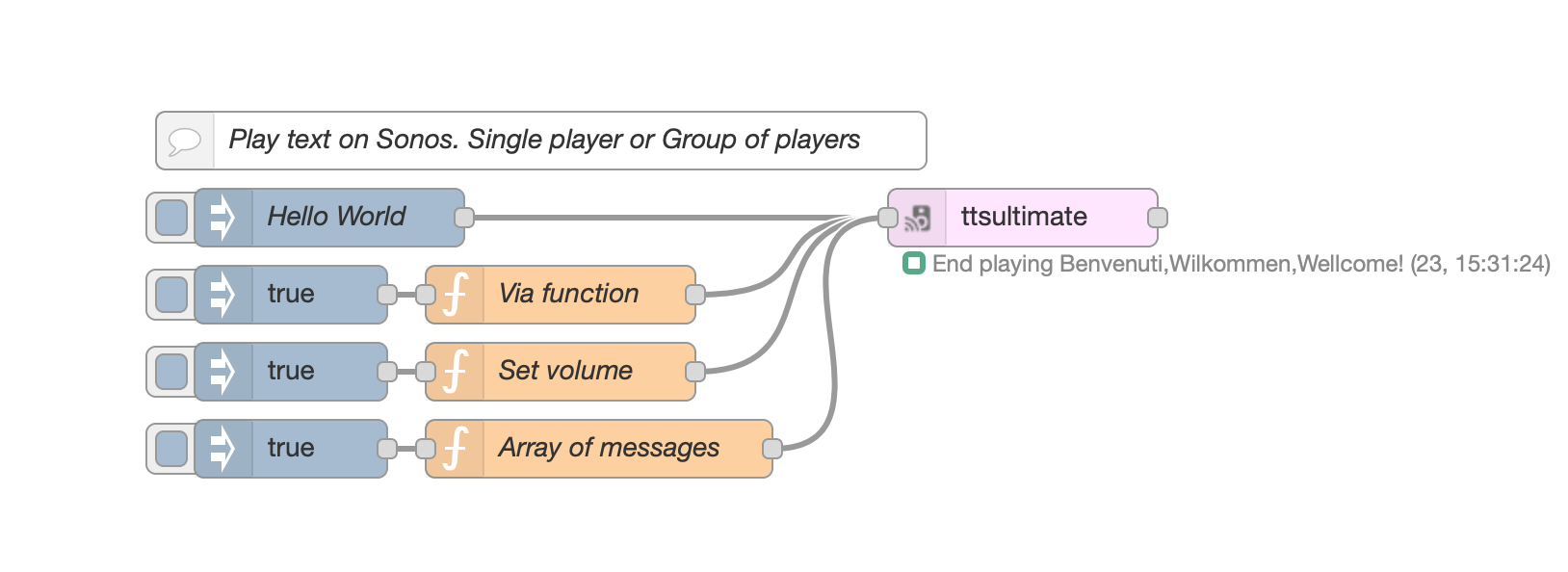
VIEW SAMPLE FLOW CODE
Adjust the nodes according to your setup
[
  {
    id: "569773ae.930abc",
    type: "inject",
    z: "344c547c.b230c4",
    name: "",
    topic: "",
    payload: "true",
    payloadType: "bool",
    repeat: "",
    crontab: "",
    once: false,
    onceDelay: 0.1,
    x: 230,
    y: 300,
    wires: [["e066ce90.46f758"]],
  },
  {
    id: "e066ce90.46f758",
    type: "function",
    z: "344c547c.b230c4",
    name: "Via function",
    func: '// The simplest way\nmsg.payload="Benvenuti,Wilkommen,Wellcome!";\nreturn msg;\n',
    outputs: 1,
    noerr: 0,
    x: 370,
    y: 300,
    wires: [["3d9635bc.53c14a"]],
  },
  {
    id: "c272b47c.41e238",
    type: "inject",
    z: "344c547c.b230c4",
    name: "",
    topic: "",
    payload: "true",
    payloadType: "bool",
    repeat: "",
    crontab: "",
    once: false,
    onceDelay: 0.1,
    x: 230,
    y: 340,
    wires: [["2fcffdb7.1c76ea"]],
  },
  {
    id: "2fcffdb7.1c76ea",
    type: "function",
    z: "344c547c.b230c4",
    name: "Set volume",
    func: '// Set the Volume\nmsg.volume="60"; // If not set, will take the volume from setting page\nmsg.payload="Benvenuti,Wilkommen,Wellcome!";\nreturn msg;\n\n',
    outputs: 1,
    noerr: 0,
    x: 370,
    y: 340,
    wires: [["3d9635bc.53c14a"]],
  },
  {
    id: "2bd6fd7f.9b9ae2",
    type: "inject",
    z: "344c547c.b230c4",
    name: "",
    topic: "",
    payload: "true",
    payloadType: "bool",
    repeat: "",
    crontab: "",
    once: false,
    onceDelay: 0.1,
    x: 230,
    y: 380,
    wires: [["aa3b6e42.669fc"]],
  },
  {
    id: "aa3b6e42.669fc",
    type: "function",
    z: "344c547c.b230c4",
    name: "Array of messages",
    func: '// Create an array of messages\nvar aMessages=[];\n// Add random messages\naMessages.push({volume:"50",payload:"Benvenuti."});\n// Wheater in Italy\naMessages.push({volume:"40",payload:"http://media.ilmeteo.it/audio/2020-12-23.mp3"});\n// Add random messages\naMessages.push({volume:"30",payload:"Cambia la tua voce nei settaggi."});\nreturn [aMessages];\n',
    outputs: 1,
    noerr: 0,
    x: 390,
    y: 380,
    wires: [["3d9635bc.53c14a"]],
  },
  {
    id: "3e0d9b5c.fe01b4",
    type: "inject",
    z: "344c547c.b230c4",
    name: "Hello World",
    topic: "",
    payload: "Ciao Mondo! Come stai?",
    payloadType: "str",
    repeat: "",
    crontab: "",
    once: false,
    onceDelay: 0.1,
    x: 250,
    y: 260,
    wires: [["3d9635bc.53c14a"]],
  },
  {
    id: "42e6fab4.e8d154",
    type: "comment",
    z: "344c547c.b230c4",
    name: "Play text on Sonos. Single player or Group of players",
    info: "",
    x: 360,
    y: 220,
    wires: [],
  },
  {
    id: "3d9635bc.53c14a",
    type: "ttsultimate",
    z: "344c547c.b230c4",
    name: "",
    voice: "Brian",
    ssml: false,
    sonosipaddress: "192.168.1.109",
    sonosvolume: "30",
    sonoshailing: "Hailing_Hailing.mp3",
    config: "557d8082.eb5a8",
    property: "payload",
    propertyType: {},
    rules: [],
    x: 610,
    y: 260,
    wires: [[]],
  },
  {
    id: "557d8082.eb5a8",
    type: "ttsultimate-config",
    z: "",
    name: "googletranslate",
    noderedipaddress: "192.168.1.219",
    noderedport: "1980",
    purgediratrestart: "leave",
    ttsservice: "googletranslate",
  },
];
SUPPORTED TTS ENGINES

Google free TTS No credentials required |

Google Cloud TTS Advanced voices and tuning |

ElevenLabs V1 and V2 multilingual voices |
Voice.ai API key based voices |
SUPPORTED PLAYERS
Sonos Native speakers and groups |
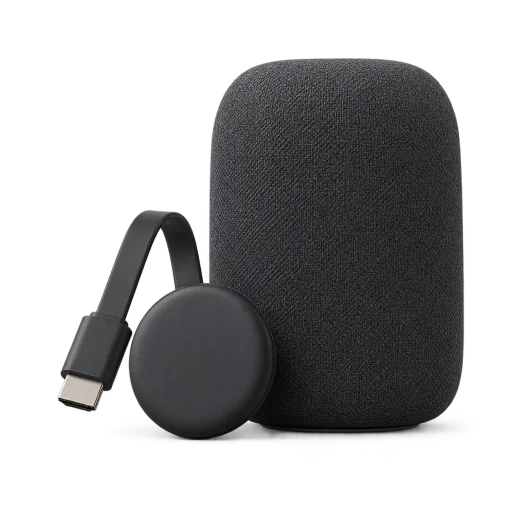
Google Cast Chromecast and Google Nest |
DLNA / UPnP Smart TVs, AV receivers and renderers |
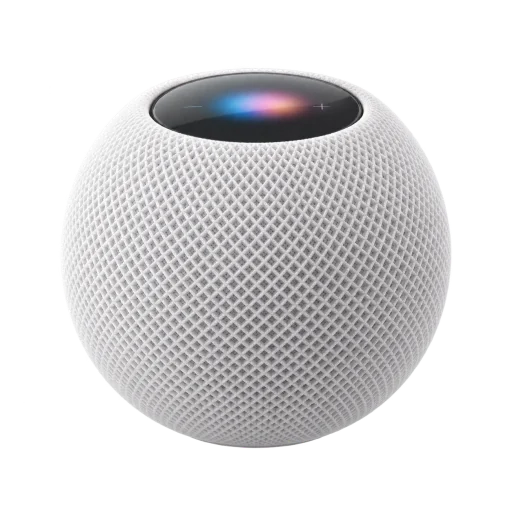
AirPlay 2 HomePod |

No player Create an audio file only |
CHANGELOG
FEATURES
- Native Sonos support: play TTS audio directly via Sonos, group speakers, set a hailing sound and choose the volume for each speaker.
- Google Cast support: play announcements on Chromecast / Google Nest devices, including multi-room playback.
- DLNA / UPnP renderer support: play TTS on smart TVs, AV receivers and other UPnP renderers. Renderers with nested MediaRenderer devices are supported too.
- AirPlay 2 support: select a master HomePod and optional additional HomePods; a stereo pair advertised by Apple remains one AirPlay endpoint.
- File-only output: create the TTS file without using any player, then pass it to other nodes or services.
- Multiple TTS engines: Google free TTS, Google Cloud TTS, ElevenLabs and Voice.ai voices are supported.
- Additional-player playback: add players for Sonos, Google Cast, DLNA or AirPlay and play one announcement on several devices at once.
- Automatic discovery: find Sonos and DLNA/UPnP renderers via SSDP, and Google Cast devices and HomePods via mDNS.
- Music resume: resume the previous queue after a Sonos announcement where supported. Some radio-station queues may not resume reliably because of Sonos API limitations. AirPlay does not resume previous media.
- TTS caching: generated audio is downloaded once and then served from cache. The cache survives reboots and updates.
- Offline-ready OwnFile playback: upload custom audio messages and use them without an internet connection.
BREAKING CHANGE
Version 3.0.0 - April 2025
Amazon Polly and Microsoft Azure TTS have been removed because the old APIs required a larger update. Contributions are welcome via fork and PR. If you still need those TTS engines, stay on or revert to
2.0.10.
NOTE IF YOU CANNOT UPLOAD YOUR OWN FILES
If you're running Node-RED as a plugin for Home Assistant, RedMatic, etc...
You may not be able to upload your own files. Please check that the user running Node-RED has permission to write to the filesystem.
TTS Service Node
Here you can set all parameters you need. All nodes will refer to this config node, so you need to set it only once.
IF YOU RUN NODE-RED BEHIND DOCKER OR SOMETHING ELSE, BE AWARE:
PORTS USED BY THE NODE ARE 1980 (DEFAULT, HTTP FILE SERVER) AND 1400 (FOR SONOS DISCOVERY).
PLEASE ALLOW MDNS AND LOCAL TCP/UDP TRAFFIC AS WELL. AIRPLAY DISCOVERY AND AUDIO TRANSPORT MAY REQUIRE DOCKER HOST NETWORKING.
TTS Service
You can choose between Voice.ai, ElevenLabs.io, Google (without credentials), and Google TTS (requires credentials and registration with Google).
For Google TTS Engine, you can choose pitch and speed rate of the voice.
- TTS Service using Google (without credentials)
This is the simplest way. Just select the voice and you're done. You don't need any credential and you don't even need to be registered to any Google service. The voice list is more limited than other services, but it works without hassles. Note: long texts are automatically split into 200-character chunks (Google Translate TTS limit) and merged into a single audio output. Manual verify:npm run verify:googletranslate-split -- --voice it-IT --text "..." --out ./out.mp3
- TTS Service using Google TTS
For Google TTS Engine, you can choose pitch and speed rate of the voice.
Google credentials file path
Here you must select your credential file, previously downloaded from Google, with these steps:Select or create a Cloud Platform project
Enable billing for your project
Enable the Google Cloud Text-to-Speech API
TTS Service using ElevenLabs
Please use the V2 engine, as the V1 is deprecated and will no longer be supported. The V2 has multilingual voices and is more powerful.
You have two choices: register to ElevenLabs, or do not register. If you don't register to ElevenLabs.io, you will either have access to a limited amount of voices, or no access at all.
After registration at ElevenLabs.io, you can add any language to your personal list. The personal list will then be shown in the node voice list.
TTS Service using Voice.ai
Add your Voice.ai API key in the config node, deploy and restart Node-RED. The node will load your available voices and show them in the Voice dropdown.
Note: SSML is not supported by this engine.
Node-RED IP
Set IP of your Node-RED machine. Write AUTODISCOVER to allow the node to auto discover your IP.
Host Port
Sonos, Google Cast and DLNA/UPnP renderers connect to this port to fetch the TTS audio. Default 1980. Choose a free port. Do not use 1880 or any other port already in use on your computer. The port must be reachable from those players on your network. AirPlay audio is streamed from Node-RED using its own local network connections instead of being fetched by the HomePod from this HTTP port.
Note: if you use multiple ttsultimate-config nodes, each one now keeps its own TTS cache folder; the “purge on restart/deploy” option only affects that config node’s cache.
TTS Cache
Purge and delete the TTS cache folder at deploy or restart
On each deploy or node-red restart, delete all tts files in the cache. This is useful not to run out of disk space, in case you've a lot of TTS speech files.
Leave the TTS cache folder untouched (suggested only if you have enough disk space)
Don't delete the files cached. Useful if you wish to keep the tts files, even in case of internet outages, node-red restart or reboots.
Cache root folder
Set your preferred output folder for the files downloaded by the TTS Engine.
This is useful if you wish to save the TTS cached files in a folder accessible to a third-party web server or media player.
Leave this field blank for the default.
AirPlay 2 / HomePod
Select AirPlay 2 (HomePod) in the TTS-Ultimate node, press Discover, and choose the Master HomePod advertised on your network. The discovery list merges duplicate mDNS advertisements and shows each HomePod once with its friendly name and current IP address. It stores a stable RAOP/mDNS selector rather than the current IP address and includes the receiver's hardware identity whenever mDNS exposes it. Playback resolves the current endpoint and automatically refreshes a stale connection after a HomePod restart or DHCP lease change. You can still enter an IP address or hostname manually. In a flow created by an older version with only a numeric HomePod IP, reselect the HomePod in Discover and save once so its stable selector is persisted. Use Additional players to add other discovered HomePods and, if needed, adjust their volume relative to the master. If two HomePods are configured by Apple as a stereo pair, they are advertised as one AirPlay endpoint and should be selected only once, either as the master or as an additional player.
The master HomePod is authoritative: its playback lifecycle emits the events used by the node, and its result determines the overall success or error. A master playback failure is emitted on the node's error output; an additional HomePod is best-effort and its failure is only reported as a warning. TTS Ultimate starts an independent stream to each selected endpoint in parallel. This is not a native AirPlay multi-room group and playback is not sample-accurately synchronized, so start times and audio may differ slightly between HomePods. Music or other media that was playing before the announcement is not resumed.
Normal generated/cached TTS files are read directly from the configured storage folder and streamed through RAOP with receiver timing and session volume. An HTTP/HTTPS payload is downloaded by Node-RED with a 45-second timeout and a 10 MB limit, and must contain an MP3 file.
Node-RED and all selected HomePods must be on the same local network, with mDNS and local TCP/UDP traffic available. In the Apple Home app, set speaker and TV access to Anyone on the Same Network and disable the AirPlay password for this version. When Node-RED runs in Docker, host networking is commonly required for discovery and audio transport.
TTS-Ultimate Node
INPUT MESSAGES TO THE NODE
Examples
// Play a message
msg.payload = "Hello, the current temperature is 12°";
return msg;
// Play a message, forcing no hailing
msg.nohailing = true;
msg.payload = "I won't disturb with my hailing, this time.";
return msg;
// Play a message with custom voice ID
msg.payload = "Hello, the current temperature is 12°";
msg.voiceId = 2;
return msg;
// Play smoke detection
msg.sonoshailing = "SmokeAlert";
msg.payload =
  "Warning, smoke detected. Fire extinguishers are in the kitchen, hall and garage.";
return msg;
// Play an mp3
msg.sonoshailing = "MeteoJingle";
msg.payload = "http://192.125.22.44/meteotoday.mp3";
return msg;
// Play priority message
msg.priority = true;
msg.payload = "Warning. Intruder in the dinning room.";
return msg;
// Stop whatever is playing
msg.stop = true;
return msg;
CHANGE CONFIGURATION VIA MSG PROPERTY
You can change the configuration of tts-ultimate, via msg.setConfig property.
The property is a JSON object.

// Set the main player IP/host (the master HomePod when Player is AirPlay)
// The setting is retained until the node receives another msg.setConfig or until node-red is restarted.
var config = {
  setMainPlayerIP: "192.168.1.109",
};
msg.setConfig = config;
return msg;
// Set the main/master player and additional players, with an optional volume
// adjustment relative to the main/master volume.
// The setting is retained until the node receives another msg.setConfig or until node-red is restarted.
var config = {
  setMainPlayerIP: "192.168.1.109",
  setPlayerGroupArray: [
    "192.168.1.110", // Same volume as the main/master player.
    "192.168.1.111#-10", // Main/master volume minus 10.
    "192.168.1.112#20", // Main/master volume plus 20.
  ],
};
msg.setConfig = config;
return msg;
// If you have only one additional player, without setting their adjusted volume.
// The setting is retained until the node receives another msg.setConfig or until node-red is restarted.
var config = {
  setMainPlayerIP: "192.168.1.109",
  setPlayerGroupArray: ["192.168.1.110"],
};
msg.setConfig = config;
return msg;
VIEW SAMPLE CODE
Adjust the nodes according to your setup
[
  {
    id: "4b4514d.047366c",
    type: "ttsultimate",
    z: "235d8e3d.a7583a",
    name: "",
    voice: "de-DE",
    ssml: false,
    sonosipaddress: "192.168.1.109",
    sonosvolume: "5",
    sonoshailing: "0",
    config: "feee307e.54bca",
    property: "payload",
    propertyType: {},
    rules: [],
    x: 430,
    y: 360,
    wires: [["2b2d7556.251d0a"], ["2978fe86.e680aa"]],
  },
  {
    id: "2b2d7556.251d0a",
    type: "debug",
    z: "235d8e3d.a7583a",
    name: "",
    active: true,
    tosidebar: true,
    console: false,
    tostatus: false,
    complete: "true",
    targetType: "full",
    statusVal: "",
    statusType: "auto",
    x: 610,
    y: 340,
    wires: [],
  },
  {
    id: "2978fe86.e680aa",
    type: "debug",
    z: "235d8e3d.a7583a",
    name: "",
    active: true,
    tosidebar: true,
    console: false,
    tostatus: false,
    complete: "true",
    targetType: "full",
    statusVal: "",
    statusType: "auto",
    x: 610,
    y: 380,
    wires: [],
  },
  {
    id: "9d9e06be.09718",
    type: "function",
    z: "235d8e3d.a7583a",
    name: "Change Config",
    func: '// Set the main player IP and each IP belonging to the player\'s group\nvar config= {\n    setMainPlayerIP:"192.168.1.109",\n    setPlayerGroupArray:[\n        "192.168.1.110",\n        "192.168.1.111",\n        "192.168.1.112"\n    ]\n};\nmsg.setConfig = config;\nreturn msg;',
    outputs: 1,
    noerr: 0,
    initialize: "",
    finalize: "",
    x: 260,
    y: 360,
    wires: [["4b4514d.047366c"]],
  },
  {
    id: "c3da8b3a.e8f2c8",
    type: "inject",
    z: "235d8e3d.a7583a",
    name: "",
    props: [{ p: "payload" }],
    repeat: "",
    crontab: "",
    once: false,
    onceDelay: 0.1,
    topic: "",
    payload: "Hello",
    payloadType: "str",
    x: 110,
    y: 360,
    wires: [["9d9e06be.09718"]],
  },
  {
    id: "c55b7140.4a7cc8",
    type: "comment",
    z: "235d8e3d.a7583a",
    name: "Change the player and/or group of players via msg property.",
    info: "",
    x: 270,
    y: 300,
    wires: [],
  },
  {
    id: "feee307e.54bca",
    type: "ttsultimate-config",
    name: "Config",
    noderedipaddress: "192.168.1.161",
    noderedport: "1980",
    purgediratrestart: "leave",
    ttsservice: "googletranslate",
  },
];
OwnFile Node Configuration

VIEW SAMPLE CODE
Adjust the nodes according to your setup
[
  {
    id: "db0ea33.f1186e",
    type: "ttsultimate",
    z: "c6efd2b6.ab02e8",
    name: "",
    voice: "en-AU-Standard-A#en-AU#FEMALE",
    ssml: false,
    sonosipaddress: "192.168.1.109",
    sonosvolume: "25",
    sonoshailing: "Hailing_Hailing.mp3",
    config: "4f941d61.f52c4c",
    propertyType: {},
    rules: [],
    x: 670,
    y: 240,
    wires: [[]],
  },
  {
    id: "c7fb2970.271978",
    type: "ownfileultimate",
    z: "c6efd2b6.ab02e8",
    name: "",
    selectedFile: "OwnFile_Tur geoeffnet.mp3",
    x: 490,
    y: 220,
    wires: [["db0ea33.f1186e"]],
  },
  {
    id: "fef80c5b.49f9e",
    type: "inject",
    z: "c6efd2b6.ab02e8",
    name: "",
    topic: "",
    payload: "true",
    payloadType: "bool",
    repeat: "",
    crontab: "",
    once: false,
    onceDelay: 0.1,
    x: 130,
    y: 220,
    wires: [["c7fb2970.271978"]],
  },
  {
    id: "807f0f6c.6d59c",
    type: "comment",
    z: "c6efd2b6.ab02e8",
    name: "You can upload your own voice messages and use it with ttsultimate",
    info: "",
    x: 310,
    y: 180,
    wires: [],
  },
  {
    id: "536e58b3.bb8468",
    type: "ownfileultimate",
    z: "c6efd2b6.ab02e8",
    name: "",
    selectedFile: "OwnFile_Tur geoeffnet.mp3",
    x: 490,
    y: 260,
    wires: [["db0ea33.f1186e"]],
  },
  {
    id: "26c339f9.346fbe",
    type: "inject",
    z: "c6efd2b6.ab02e8",
    name: "",
    topic: "",
    payload: "true",
    payloadType: "bool",
    repeat: "",
    crontab: "",
    once: false,
    onceDelay: 0.1,
    x: 130,
    y: 260,
    wires: [["25016441.6447bc"]],
  },
  {
    id: "25016441.6447bc",
    type: "function",
    z: "c6efd2b6.ab02e8",
    name: "Dynamically Select file",
    func: '// Override the selected file.\nmsg.selectedFile="Porta aperta"\nreturn msg;',
    outputs: 1,
    noerr: 0,
    x: 300,
    y: 260,
    wires: [["536e58b3.bb8468"]],
  },
  {
    id: "4f941d61.f52c4c",
    type: "ttsultimate-config",
    z: "",
    name: "GoogleTTS",
    noderedipaddress: "192.168.1.219",
    noderedport: "1980",
    purgediratrestart: "leave",
    ttsservice: "googletts",
  },
];
This node allows you to upload your custom message and play it via TTS Ultimate without the need for an internet connection. You can use it, for example, with your alarm panel to announce a zone breach, a doorbell or similar events.
Name
Node name
File to be played
Select a file to be played. You can upload one or multiple files at the same time via the "upload" button.
Priority
If set to true, the OwnFile message will cancel the current TTS queue, will stop the current phrase being spoken and the TTS-Ultimate node will play this priority message.
Please refer to msg.priority msg input property of TTS-Ultimate for info on how this message will be handled
INPUT MESSAGE
msg.payload = true
Begin play of the message
msg.selectedFile = "Garage door open"
Overrides the selected message and plays the filename you passed in. Please double check the spelling of the filename (must be the same as you can see in the dropdown list of your own files, in the node config window) and do not include the .mp3 extension.
msg.priority
If set to true, the OwnFile message will cancel the current TTS queue, will stop the current phrase being spoken and the TTS-Ultimate node will play this priority message.
Please refer to msg.priority msg input property of TTS-Ultimate for info on how this message will be handled