@vincentgloss/node-red-dashboard-2-ui-switch-options 1.1.1
Option switcher for Node-RED FlowFuse Dashboard 2.0: step through a list of options with previous and next buttons, set options and selection from your flow, Material Design icons and own colors
Switch Options – Option Switcher for FlowFuse Dashboard
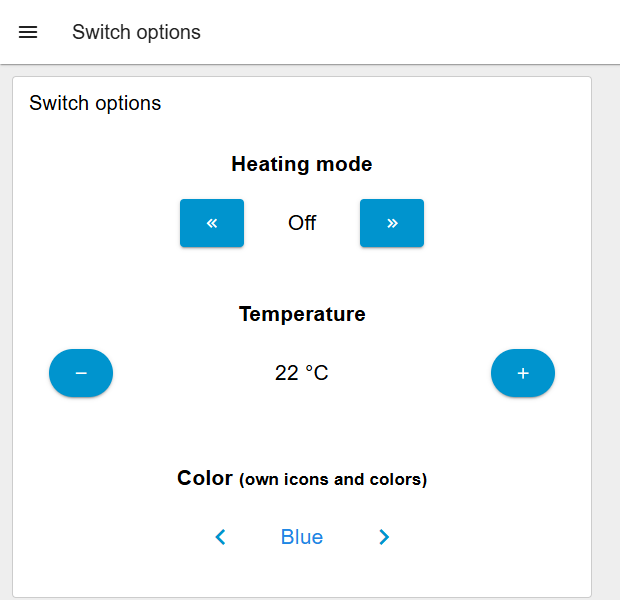
A widget for FlowFuse Dashboard 2.0, the dashboard for Node-RED, that steps through a list of options with previous and next buttons. Every switch sends the value of the selected option into your flow.
English | Deutsch
Requirements
| Software | Version |
|---|---|
| Node-RED | 3.0 or newer |
FlowFuse Dashboard (@flowfuse/node-red-dashboard) |
1.23 or newer |
Installation
In the Node-RED editor (recommended): open the menu, choose Manage palette, switch to Install, search for @vincentgloss/node-red-dashboard-2-ui-switch-options and click Install.
From the command line: run this in your Node-RED user directory (usually ~/.node-red), then restart Node-RED:
npm install @vincentgloss/node-red-dashboard-2-ui-switch-options
Quick start
- Drag switch option from the Dashboard 2 section of the palette into your flow.
- Choose a Group, add a few Options (label and value) and deploy.
- Connect a debug node to the output and switch in the dashboard.
A ready-made demo is included: Import → Examples → @vincentgloss/node-red-dashboard-2-ui-switch-options → switch-options-demo. It opens at /switch-options-demo and has an inject node for every input.
Configuration
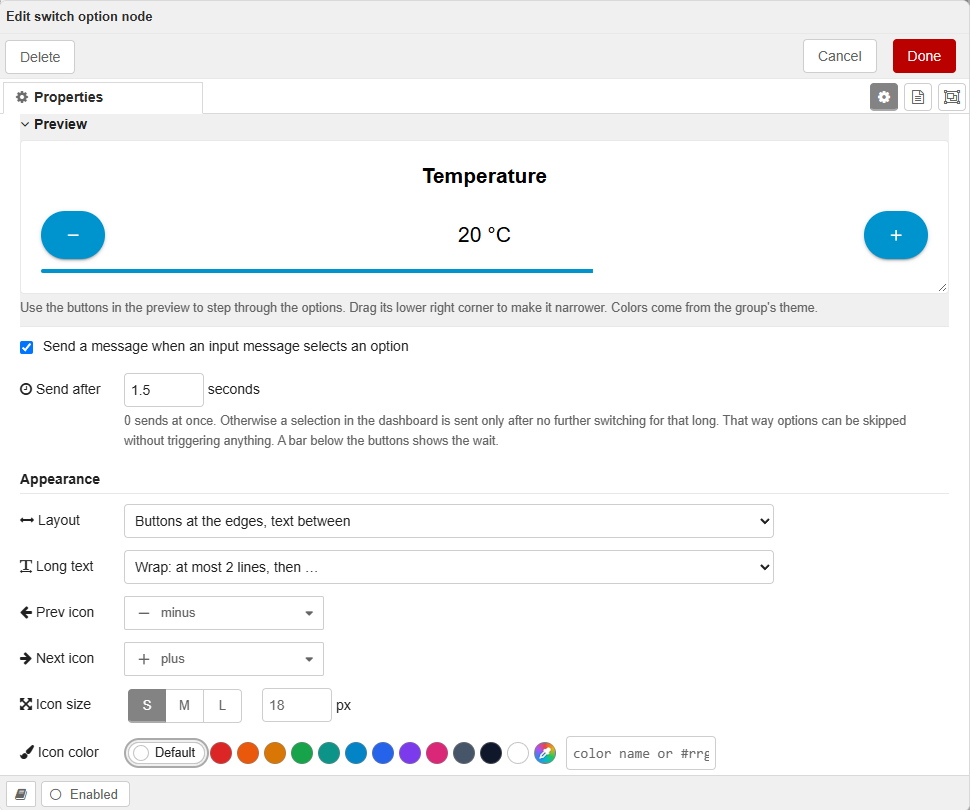
Below name, group and size a preview shows the widget with the current settings and the colors of the group's theme. Its buttons step through the options. Drag its lower right corner to make it narrower and see how long text behaves in a narrow widget. It stays at the top while scrolling.
| Field | Description |
|---|---|
| Group, Size | Where the widget appears and how much room it takes. |
| Label | Optional text above the widget. HTML is allowed. |
| Options | The list to step through. Each option has a label (shown, HTML allowed) and a value (sent). The value can be text, a number, a boolean or JSON. Without a label the value is shown. |
| After the last option, start again at the first | On by default. If unchecked, the buttons stop at the first and the last option. |
| Send a message when an input message selects an option | Off for new nodes. Leave it off if the widget only shows a state, so a message cannot loop back. |
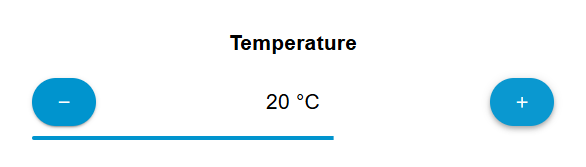
| Send after | 0 sends at once (default). With a time in seconds, a selection in the dashboard is sent only after no further switching for that long. Every click starts the wait again, and a bar in the icon color below the buttons shows it. That way options can be skipped without triggering anything. Back at the starting option, nothing is sent. If an input message selects an option during the wait, the waiting selection is dropped. |
| Layout | Centered: the text is as wide as the longest option, the buttons sit right next to it. Buttons at the edges: the buttons sit at the left and right edge, the text uses the room between them. Either way the buttons stay in place when the option changes. |
| Long text | Wrap: at most 2 lines, then "…". Shrink: the font gets smaller, the same for all options, until they fit on one line (down to 14 px), then as Wrap. One line: "…" right away. Cut off text is shown in full as a tooltip. |
| Prev icon, Next icon | Picker with suitable suggestions and a search over all Material Design icons of the installed Dashboard. Default: chevron-double-left and chevron-double-right. |
| Icon size | S (18 px, default), M (24 px) or L (32 px), or an own size in pixels. |
| Icon color, Button color | A color from the palette, your own with the eyedropper, or in the text field a value like #AEEA00 or a color name like teal. Default uses the theme. The button color can also be Transparent (no background, no shadow). Without an own icon color, the icon uses the theme color on transparent buttons and turns dark on light buttons. |
| Corners | Corner radius of the buttons: Square (0 px), Default (4 px), Rounded (12 px), Round (24 px) or an own radius in pixels. |
With Send after, a bar below the buttons runs empty until the selection is sent:
Control from a flow
First msg.options and msg.ui_update are applied, then one option is selected: by msg.index, otherwise by msg.step, otherwise by msg.payload.
| Property | Effect |
|---|---|
msg.payload |
Selects the option with this value. Text and numbers match each other (1 selects "1", "true" selects true), objects match options with the same JSON. If nothing matches, the node shows a warning and nothing changes. |
msg.index |
Selects the option at this position, starting at 0. |
msg.step |
Moves by this many options: 1 is next, -1 previous. Stops at the ends if start again at the first is off. |
msg.options |
Replaces the options. Plain values like ["Off","On"] or [18,20,22], or objects like [{"label":"Off","value":"off"}]. The current option stays selected if it is still in the list, otherwise the first one. |
msg.ui_update |
Changes label, prevIcon, nextIcon, iconColor, iconSize, buttonColor or buttonRadius, e.g. {"label":"Mode","buttonColor":"red"}. null returns to the editor setting. class adds CSS classes. |
msg.enabled |
false disables the buttons, true enables them again. |
msg.visible |
false hides the widget, true shows it again. |
msg.class |
Adds CSS classes to the widget. |
All open dashboards always show the same option and appearance, also after a reload. After a redeploy the widget starts with the options and appearance from the editor again and keeps the selected option if it is still one of them.
Output
A message is sent when somebody switches in a dashboard (with Send after only after the wait), and when an input message selects an option if Send a message when an input message selects an option is checked:
{ "payload": "comfort", "label": "Comfort", "index": 2 }
| Property | Content |
|---|---|
payload |
The value of the selected option, with its type (text, number, boolean or JSON). |
label |
The label of the selected option. |
index |
The position of the selected option, starting at 0. |
topic |
Taken from the input message, if it had one. |
_client |
Which dashboard client switched, if Include client data is enabled in the Dashboard settings. |
Upgrading from 1.0
Existing nodes keep working as before: they still send a message when an input message selects an option, and they still start again at the first option after the last. Opening them in the editor shows both settings checked. Values from 1.0 stay text.
- The output after an input message now has the same shape as after a switch in the dashboard:
payload,labelandindex.currentIndex,optionsand the fixed topicui-switch-options-updateare gone. - An unknown
msg.payloadnow shows a node warning instead of sending"Option not found in options array"with topicerror.
Development
npm install
npm run build      # builds resources/ui-switch-options.umd.js
npm run dev        # rebuilds on every change, with source map
npm run lint
To try a local change, run npm install /path/to/node-red-dashboard-2-ui-switch-options in your Node-RED user directory and restart Node-RED.