@tier0/node-red-contrib-opcda-client 1.0.33
Node-RED OPC DA Reading and Writing Node
@tier0/node-red-contrib-opcda-client
Node-RED nodes for browsing, reading, and writing data from classic OPC DA servers over DCOM.
This package supports OPC DA, not OPC UA. Before you begin, obtain the OPC server address, Windows/DCOM credentials, and CLSID.
Included nodes
| Node | Purpose |
|---|---|
tier0-opcda-server |
Stores the OPC DA server connection settings |
tier0-opcda-read |
Reads configured OPC item values |
tier0-opcda-write |
Writes one or more OPC item values |
Before you begin
- The Node-RED host or container can reach the OPC DA server.
- Remote DCOM access is enabled on the OPC DA server.
- TCP port 135 and the dynamic RPC ports used by the server are reachable.
- The Windows account has DCOM Launch, Activation, and Access permissions, as well as access to the OPC server.
- You know the CLSID of the target OPC DA server.
Installation
Online installation
Run the following command from the Node-RED user directory:
npm install @tier0/node-red-contrib-opcda-client
The Node-RED user directory is usually /data in Docker:
docker exec -it <node-red-container> sh
cd /data
npm install @tier0/node-red-contrib-opcda-client
exit
docker restart <node-red-container>
Offline Docker installation
The client .tgz contains all required runtime dependencies. Only this one file needs to be copied to an offline customer server.
docker cp tier0-node-red-contrib-opcda-client-1.0.33.tgz <node-red-container>:/data/
docker exec -it <node-red-container> sh
cd /data
npm install --offline --no-audit --no-fund ./tier0-node-red-contrib-opcda-client-1.0.33.tgz
exit
docker restart <node-red-container>
If online installation reports getaddrinfo EAI_AGAIN registry.npmjs.org, the container cannot reach the npm registry. Use the offline installation procedure instead.
Quick start
- Add a
tier0-opcda-readnode to the flow. - Create a new
tier0-opcda-serverconfiguration. - Save and deploy the flow.
- Open the server configuration and click Browse.
- Click Export to download the item list.
- Open the Read node and click Import to import the list.
- Connect
inject -> tier0-opcda-read -> debug. - Deploy again and wait for the Read node to show
Ready. - Click Inject and inspect the result in the Debug sidebar.
[inject] -> [tier0-opcda-read] -> [debug / function / mqtt]
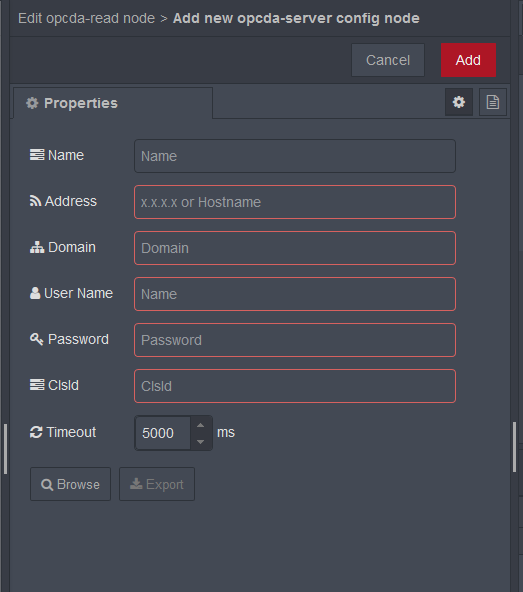
Server configuration
| Field | Description |
|---|---|
| Name | Server name shown in Node-RED |
| Address | OPC DA server IP address or hostname, for example 192.168.31.31 |
| Domain | Windows/NTLM domain required by the server account |
| User Name | Account with DCOM and OPC server access |
| Password | Password for the account |
| ClsId | Class ID of the OPC DA server |
| Timeout | Connection and operation timeout in milliseconds |
| Reconnect cooldown | Retry cooldown in minutes after the server reports resource exhaustion; default: 5 minutes |
For a slow server or a large item list, start with a Timeout of 15000 or 20000 ms.
Browsing items
Open the tier0-opcda-server configuration:
- Click Browse.
- Wait for the number of discovered items to appear.
- Click Export to download
export.json. - Open the Read node and click Import to load the file.
Notes:
- Save and deploy the server configuration before the first Browse.
- Node-RED does not display a saved password again in the editor. This is expected.
- The same server configuration cannot run multiple Browse operations at the same time.
- When Node-RED permission control is enabled, the user needs the
node-opc-da.listpermission.
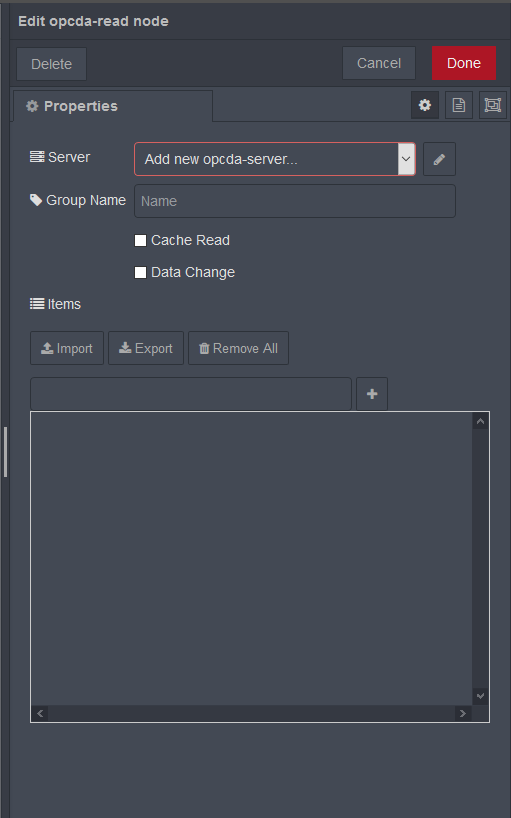
Read node
Settings
| Field | Description |
|---|---|
| Server | OPC DA Server configuration to use |
| Name | Node name |
| Cache Read | Read from the OPC server cache when selected; otherwise read from Device |
| Data Change | Only send output when at least one value has changed |
| Items | OPC item IDs to read |
Cache Read
- Enabled: reads the current OPC server cache. This is usually faster and creates less load on field devices.
- Disabled: requests a Device read. Actual freshness depends on the OPC server and device communication state.
Triggering a read
Each input message triggers one read. The input payload is not used as a read parameter.
If the node is already Reading, another input message will not start a concurrent read.
Output
After a successful read, msg.payload is an array:
[
  {
    "itemID": "Channel1.Device1.Tag1",
    "errorCode": 0,
    "quality": "GOOD",
    "timestamp": "2026-08-05T08:00:00.000Z",
    "value": 123.45
  }
]
| Property | Description |
|---|---|
itemID |
OPC item ID |
errorCode |
OPC DA result code; normally 0 on success |
quality |
GOOD, UNCERTAIN, BAD, or UNKNOWN |
timestamp |
Timestamp returned by the OPC server |
value |
Current value |
The current version only sends an output message when all returned values have GOOD quality. If the node shows Bad Quality, inspect the corresponding items in the OPC server.
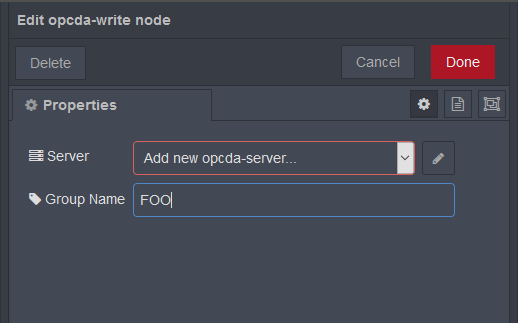
Write node
Set msg.payload to a non-empty array of values to write:
[
  {
    "itemID": "Channel1.Device1.Setpoint",
    "type": "float",
    "value": 42.5
  },
  {
    "itemID": "Channel1.Device1.Enabled",
    "type": "boolean",
    "value": true
  }
]
Supported type values:
double, short, integer, float, byte, long, boolean,
uuid, string, char, date, currency, array
Output:
- Success:
msg.payloadistrue. - Failure:
msg.payloadisfalse. - Input validation and server rejection errors may also include
msg.errorandmsg.details.
Node status
| Status | Recommended action |
|---|---|
| Ready | The node can read or write |
| Reading / Writing | Wait for the current operation to finish |
| Good Quality | The most recent read completed normally |
| Bad Quality | Check item communication and quality in the OPC server |
| Mismatch Data | Check whether every configured item is valid and was added successfully |
| Reconnecting | Wait for automatic reconnection |
| Resource cooldown | Wait for the configured cooldown and inspect OPC server client/resource usage |
| Reconnect stopped | Correct the account, permissions, or CLSID, then deploy again |
| Disconnected / Error | Check the Node-RED log; the node will normally attempt to reconnect |
Troubleshooting
The node shows Ready, but Inject produces no output
- Confirm that the Read node contains at least one item.
- Check whether the node changes to
Bad Quality. - Confirm that the previous read is not stuck in
Reading. - Connect a Debug node after the Read node.
- Add Catch and Status nodes to the flow.
- Inspect the Node-RED container log, not only the editor sidebar.
Browse reports an account, permission, or password error
- Save and deploy the Server configuration before browsing.
- Re-enter the username and password, then deploy again.
- Verify DCOM and OPC server permissions.
- Verify that the CLSID belongs to the target OPC DA server.
- Grant
node-opc-da.listwhen Node-RED permission control is enabled.
HRESULT 0x1c00001b (469762075)
Check whether the OPC server has reached its client, Session, Group, COM object, memory, or handle limits. Also check whether other collectors are connected to the same server. The node displays Resource cooldown and automatically retries after the configured interval.
Received unexpected PDU from server, connection timeout, or connection closed
The node closes the affected connection and reconnects automatically. If the error occurs frequently, check:
- Whether other collectors are causing load fluctuations on the OPC server.
- OPC server and Windows DCOM logs.
- Firewall, NAT, and dynamic RPC port access.
- Whether Timeout is shorter than a complete read at the site.
Screenshots
Server
Read
Write
Changes
See CHANGELOG.md for implementation and compatibility changes.
License
Apache-2.0. This project is maintained from the original node-red-contrib-opcda-client project.