@background404/node-red-contrib-llm-plugin 0.6.3
Node-RED sidebar plugin for chatting with LLMs (Ollama / OpenAI / Custom OpenAI-compatible endpoints), generating flows, and importing results
LLM Plugin for Node-RED



LLM Plugin is a Node-RED sidebar extension for chatting with LLMs, generating/modifying flows, and importing results into the active tab.
Demos
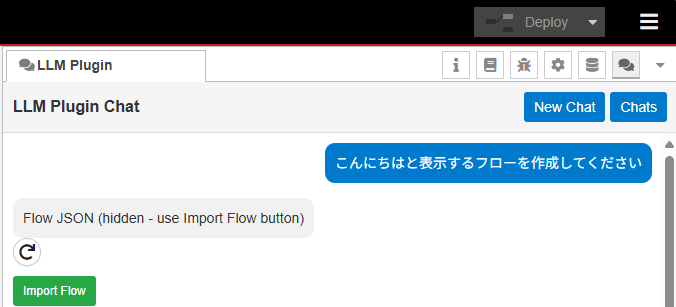
Click the image below to watch the video:
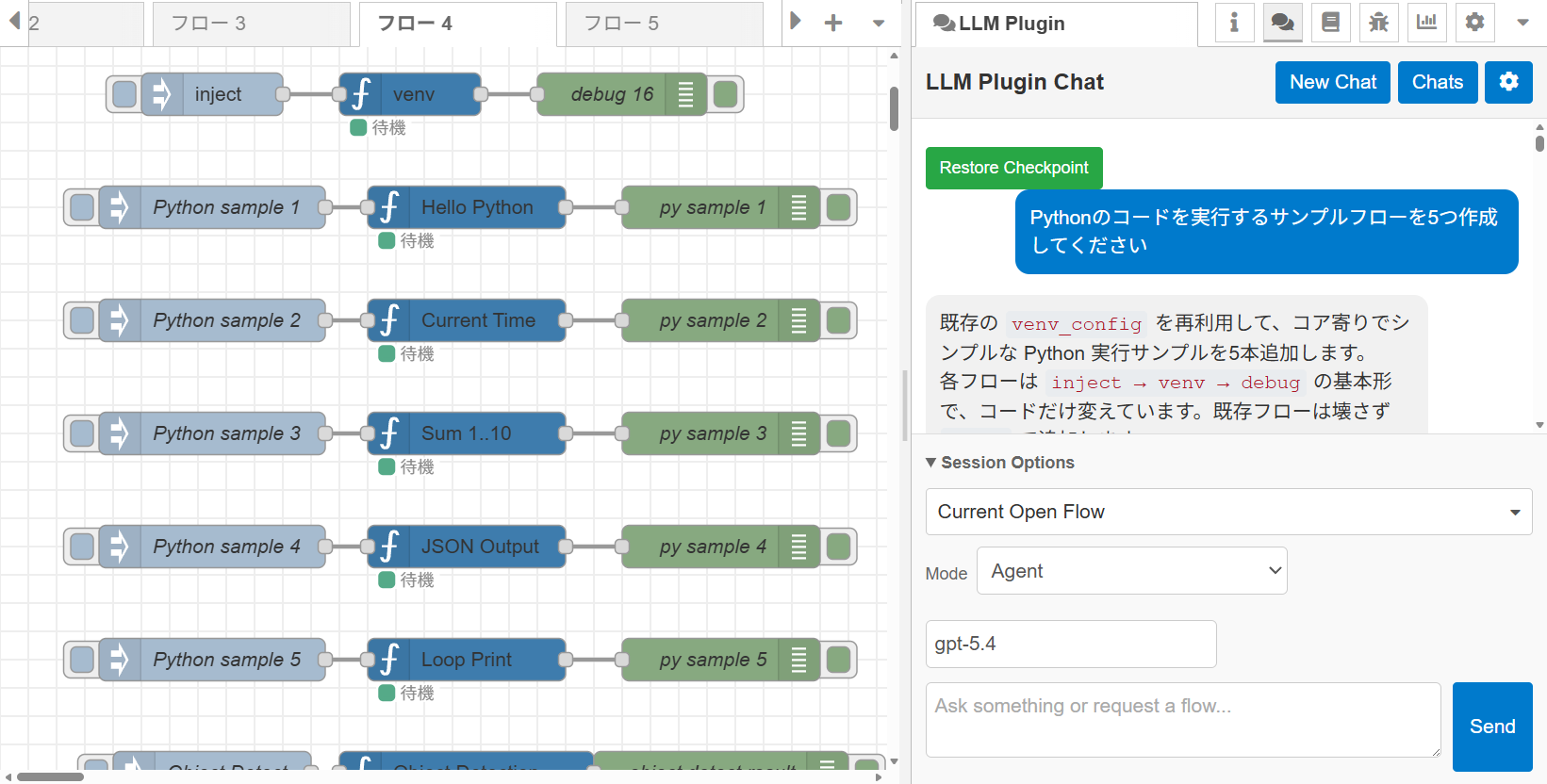
With python-venv node:
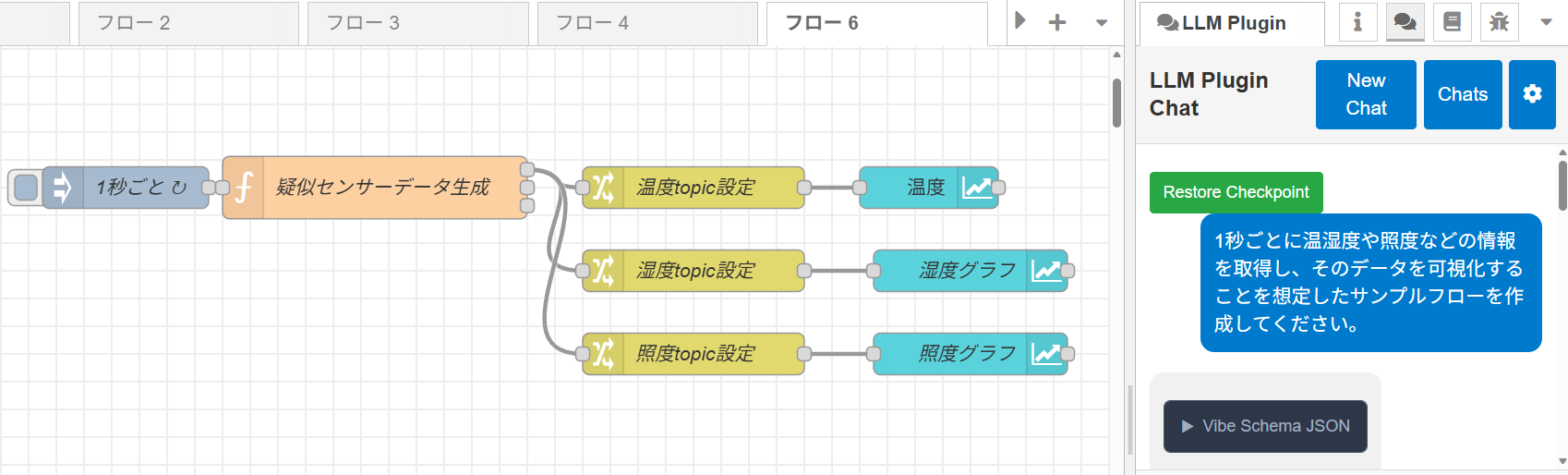
With Dashboard 2.0:
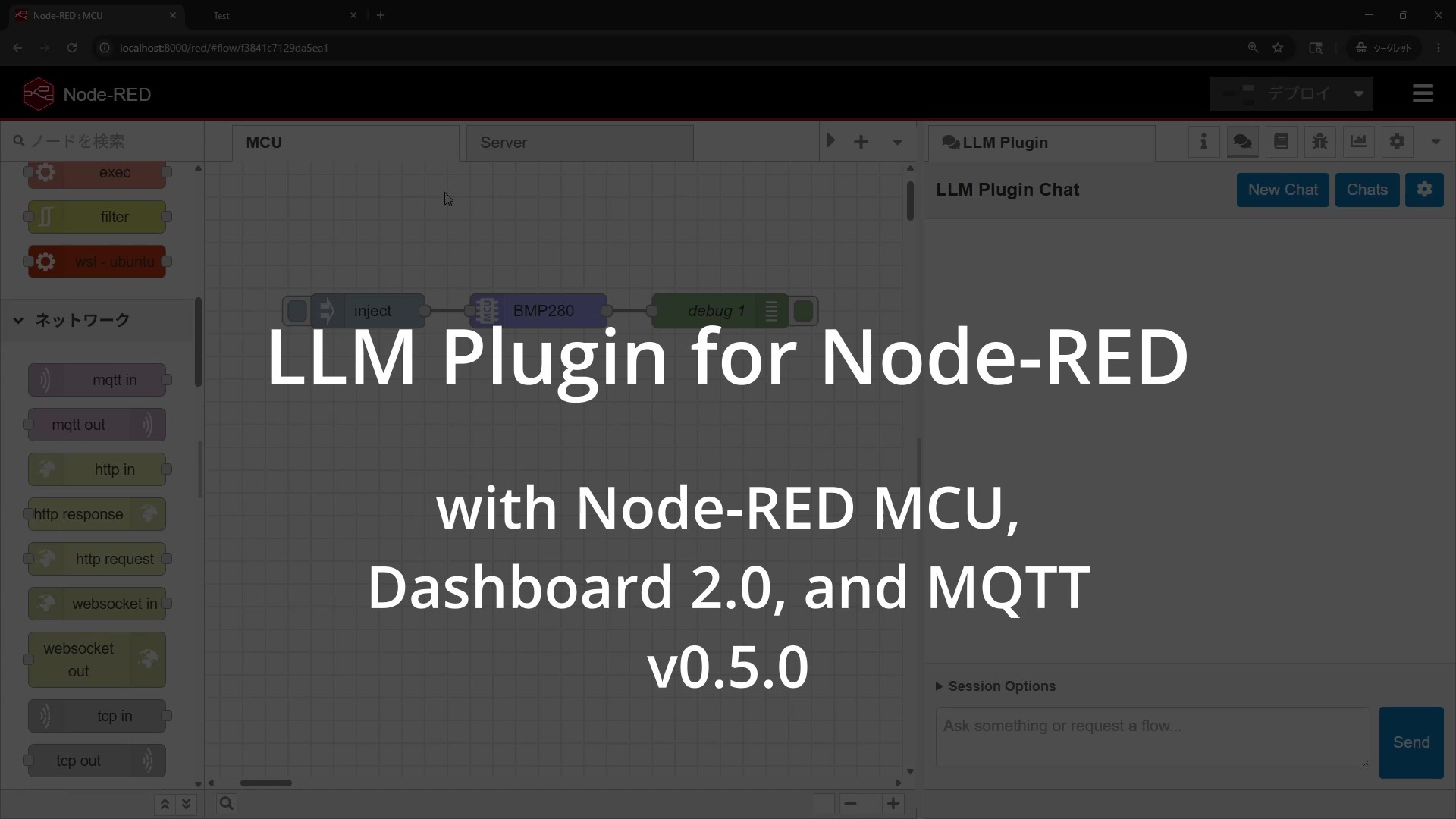
With Node-RED MCU (v0.5):
Install
Add from "Manage palette" or
npm install @background404/node-red-contrib-llm-plugin
Restart Node-RED after install.
Requires Node-RED 4.0 or later on Node.js 22 or later.
Quick Start
- Open the LLM Plugin sidebar.
- Configure provider in Settings:
- Ollama: set URL (default
http://localhost:11434) - OpenAI: set API key
- Custom (OpenAI-compatible): set Base URL (e.g.
http://localhost:8080/v1) and, if required, an API key. Use for llama.cpp, LM Studio, vLLM, LocalAI, or any other server speaking the OpenAI chat-completions API.
- Pick which flow tabs to include via the flow selector (check additional tabs in the dropdown to send them too). A new chat starts on the open flow; a chat you come back to — including the latest one when Node-RED restarts — brings back the flows it was working on.
- Pick the mode: Ask reads the selected flows and explains them (it never proposes a flow), Agent changes them and applies the result.
- Enter model and prompt.
- Click Send to generate and/or apply the flow.
Recommended Usage
It is highly recommended to add custom or non-core nodes to your flow before passing them to the LLM. Since the LLM does not inherently know the required properties of custom nodes, keeping a small sample flow in the active tab ensures it is sent as the Current Open Flow. The model will then follow real node/property patterns from that sample instead of relying on fixed per-node prompt rules.
This covers wiring as well as properties. How many outputs a node has, and what each one carries (stdout / stderr / status, …), lives in the node's editor definition — not in the flow JSON — so it never reaches the model on its own. A sample with every output already connected is what tells it, and is the difference between three outputs wired one each and two links on the first one.
The demo video above shows this pattern with the python-venv node: a minimal inject → venv → debug flow kept in the active tab.
Features
- Two modes, two questions: Ask is read-only — it is given your flow and asked to explain and diagnose it, so "why does this not fire?" comes back as "
inject_tick'srepeatis empty" rather than as a flow to import. Agent is the one that builds, and applies what it builds. - Node names are links: in either mode, a node the reply mentions is clickable — it switches to that tab and reveals the node on the canvas (config nodes open their edit dialog).
- Chat history: conversations are persisted on the server and can be loaded, deleted (several at once, or all), or continued across sessions.
- Checkpoint / Restore: a snapshot of the flow is taken immediately before each import, and a per-message Restore button rewinds the workspace to that pre-edit state. It sits above the prompt it undoes, and Apply Again sits on the reply's schema block, so you can switch between the flow you had and the one the model proposed.
- Custom system prompt: add persistent instructions (preferred node types, coding style, language) via Settings.
- Forgiving import: the flow in a reply is found whether it is fenced or not and whatever prose surrounds it.
- Edits are merges: what the reply lists is added or updated, what it names under
deleteis deleted, and the rest of your flow is left alone — so a partial answer never rewrites the whole tab. - Tidy layout: new and moved nodes land on the editor grid, so they line up when dragged: wires two squares long, sequences three squares apart, with or without group boxes.
- Several sequences: ask for several flows in one tab and you get several independent sequences (
flowin the schema always means the tab). Group boxes stay yours: a new node wired into a boxed sequence joins that box.
Planned: llm-request node
An llm-request node, so a flow can call an LLM without the sidebar, is in
development and not part of this release. Its design is in
docs/en/llm-request.md (日本語).
Documentation
This README covers install and usage. Everything else — how the plugin works and
why — lives in docs/, with an English (docs/en/) and a
Japanese (docs/jp/) version of every page.
| Document | Covers | English | 日本語 |
|---|---|---|---|
| Design notes | Processing flow, rules, priorities, and the reasoning behind them | en | jp |
| Architecture | Module-by-module guide, HTTP endpoints, security measures | en | jp |
| Vibe Schema | The intermediate flow format the LLM reads and writes | en | jp |
| Layout | Canvas layout engine, spacing rules, comment placement | en | jp |
llm-request node (planned) |
The node a flow calls an LLM from, in full | en | jp |
Two more, kept next to what they describe:
- Tests:
test/README.md— the suites, what each one guards, and how to run the live round-trip against a real LLM endpoint. - Prompt templates:
src/prompt_system.txt(Agent — the Vibe Schema rules) andsrc/prompt_ask.txt(Ask — read the flow and explain it).
AI agents / contributors: read
docs/before editing — start with Design notes (why the flow, rules and priorities are what they are) and Architecture (what each module does). Docs are consolidated there rather than scattered acrosssrc/,src/core/andnode/; keep theen/andjp/versions in sync when you change either.
Security Notice
Agent mode executes what the model writes
Agent mode applies the model's reply to your canvas without a confirmation step. Generated flows can contain function nodes (arbitrary JavaScript in the Node-RED process) and exec nodes (arbitrary shell commands), and there is deliberately no node-type restriction — limiting what the model may build would defeat the feature.
So whoever controls the model's output controls what gets deployed. Point Agent mode only at an LLM endpoint you trust, and review the result on the canvas before you Deploy. Ask mode has no such property — it only returns text.
Credentials and shared instances
Everything the plugin keeps — settings, chat history, and API keys (encrypted) — is in one folder, <userDir>/llm-plugin; removing it resets the plugin. API keys are masked in the UI and redacted from logs, replies are rendered as Markdown through DOMPurify (images become links, so nothing is fetched), and a stored key is never carried over to a new endpoint behind your back. With adminAuth enabled the plugin's endpoints require an authenticated editor session. Several people applying Agent edits to the same Node-RED at once is not supported yet (#8).
When sharing your Node-RED user directory (Git, backups, environment exports), keep llm-plugin/, flows_cred.json, .config.*.json and settings.js out of the share.
Every measure and the reasoning behind it: architecture → Security measures (日本語).
Notes
- This plugin is under active development.
- Model output quality varies by model and prompt.
- Cloud / sandboxed Node-RED hosts (e.g. enebular): chat history
and flow checkpoints are persisted to
<userDir>/llm-plugin/when that location is writable, and kept in memory only when it is not — nothing survives a restart in that case. The plugin never writes to its own install dir, so it loads cleanly on read-only plugin filesystems.
Links
Please report issues at: GitHub Issues
Node-RED API Reference
My article: 『Node-REDのプラグインを開発してみる その2(LLM Plugin v0.4.0)』
